
If You Delete an Email on Outlook, Does It Unsend? (The Clear Answer)
It’s a natural assumption: you sent an email by mistake, so you delete it from your Sent folder — surely that pulls it back? Unfortunately, no. Deleting a sent email in Outlook does not unsend it. Here’s exactly why, what actually happens when you delete it, and the two real ways to unsend an email in Outlook instead.

No — deleting an email from your Sent folder in Outlook does not unsend it. It only removes your copy of the message. The recipient already has their own separate copy sitting in their inbox on their own mail server, and deleting yours has zero effect on theirs. To actually unsend an email in Outlook, you need one of two different tools: Undo Send (a short delay window that stops the email before it leaves) or Message Recall (which can remove an unread email, but only inside your own organization). This guide covers both.
This is one of the most common — and completely understandable — misunderstandings about how email works. In almost every other app on your computer, deleting something makes it go away. You delete a file, it’s gone. You delete a photo, it’s gone. So it feels perfectly logical that deleting a sent email should make it disappear from wherever it went.
But email doesn’t work like a file on your computer. It works like a letter you’ve already dropped in the mailbox. Once it’s sent, a copy travels to the recipient and lands in their inbox — which lives on a completely different server that you have no control over. The copy in your Sent folder is just your record that you sent it. Throwing away your record doesn’t reach across the internet and snatch back the copy they received.
Let’s break down exactly what deleting does and doesn’t do, and then get you to the tools that actually can unsend an email in Outlook — if you act in time.
What Deleting a Sent Email in Outlook Actually Does
When you go to your Sent Items folder and delete a message, here’s precisely what happens — and what doesn’t:
So if your goal was to make the recipient never see the email, deleting it from your Sent folder accomplishes nothing toward that goal. The only thing you’ve changed is your own filing.
Why Deleting Doesn’t Unsend: The Mailbox Explained
Understanding why this is the case makes everything else click into place — and helps you remember it the next time panic strikes. It comes down to one fact: your mailbox and the recipient’s mailbox are two entirely separate places.
When you hit send in Outlook, your email is handed off to a mail server, which delivers a copy to the recipient’s mail server, which drops it into their inbox. At that moment, two independent copies exist: yours in your Sent folder, theirs in their inbox. They live on different servers, possibly at different companies, in different parts of the world. There is no invisible thread connecting the two.
Deleting acts only on the copy you can touch — the one in your own mailbox. You simply have no access to the recipient’s mailbox, so nothing you do in your own account can reach into theirs. It’s exactly like posting a physical letter: once it’s in the recipient’s hands, tearing up your photocopy of it does nothing. Their letter is their letter.
The 2 Real Ways to Unsend an Email in Outlook
Now for what actually works. Outlook gives you two genuine tools to unsend a message — but neither one is “delete it from Sent.” They are Undo Send and Message Recall, and which one you can use depends entirely on how fast you act and who you sent it to.
Method 1: Undo Send (Your Best Bet)
Undo Send is the more reliable of the two because it doesn’t depend on the recipient at all — the email never actually leaves. The trade-off is you have to catch it within a few seconds, and you need to have enabled it in advance.
- Click the gear icon (⚙) to open Settings.
- Go to Mail → Compose and reply.
- Scroll to Undo send and drag the delay to the maximum.
- Click Save.
- Up to 10 seconds in Outlook on the web.
- Up to 120 seconds (2 minutes) in the new Outlook desktop app.
- After you send, an Undo button appears — click it within the window to pull the email back before it goes anywhere.
The moment you click Undo, the send is cancelled and you’re returned to your draft to fix or delete it. Because the message never reached the recipient, there’s no notification and no trace. This is genuinely the closest thing to a real “unsend” button that exists — which is why enabling it at the maximum delay is the smartest email setting you can change today.
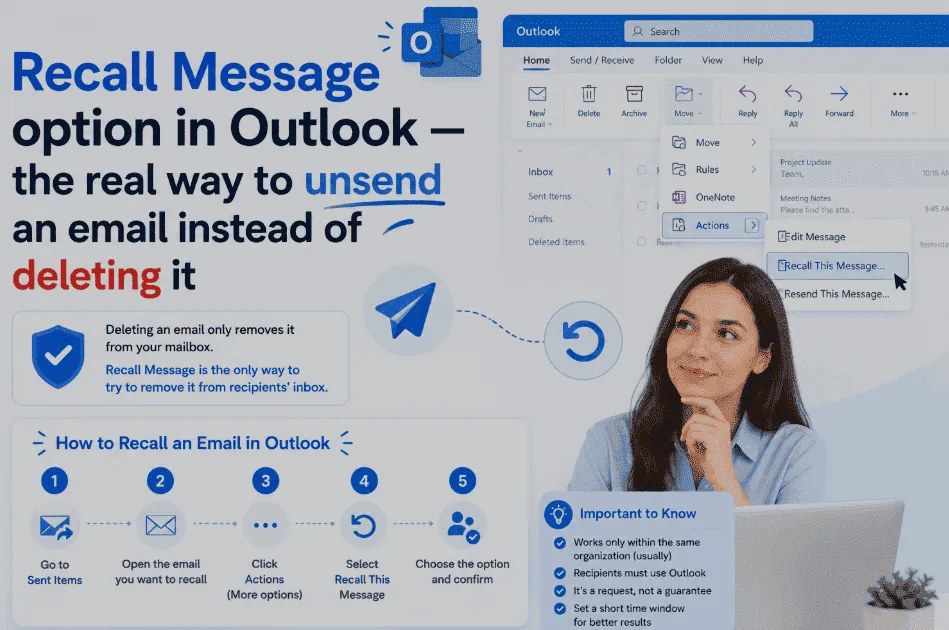
Method 2: Message Recall (For Internal Emails)
If your Undo Send window has passed and the email is already delivered, Message Recall is your remaining option — but only in specific circumstances. Recall asks the mail server to remove the message from the recipient’s mailbox, which is why it can do what deleting-from-Sent cannot.
- Open your Sent Items folder.
- Double-click the message to open it in its own window.
- Select Recall Message on the ribbon (classic Outlook: Actions → Recall This Message).
- Confirm, then check the Message Recall Report that arrives to see if it worked.
- You and the recipient are in the same organization.
- You’re both on Microsoft 365 or Exchange.
- The recipient hasn’t opened the email yet.
- It’s still in their inbox (not moved by a rule).
Microsoft’s newer cloud-based recall (from late 2025) is more reliable than the old version and sends you a per-recipient report showing exactly what happened. Cross-organization recall is planned for around August 2026, but will require the other company to opt you in. For now, recall remains an internal-only tool — great for that “I emailed the wrong colleague” moment, useless for an email to an outside client.
Which Method Should You Use?
Here’s a simple way to know which tool fits your situation the instant it happens:
| Your situation | Use this | Will it work? |
|---|---|---|
| You just clicked send (within seconds) | Undo Send | Yes — for any recipient, if enabled |
| Sent to a colleague in your company, unread | Message Recall | Likely — if conditions are met |
| Sent to a colleague, but they’ve read it | Correction email | Recall won’t work — send a fix |
| Sent to an external / Gmail address | Correction email | Neither tool works externally |
| Deleted it from Sent hoping to unsend | Undo Send or Recall instead | Deleting did nothing — use a real method |
| It’s been more than a few minutes | Correction email | Windows have passed — send a fix |
If You Emailed Someone Outside Your Company
Since recall only works internally, an email to an external address (a client, a partner, a personal Gmail) can’t be unsent once the Undo Send window closes. Deleting it from your Sent folder — the thing that brought you here — won’t help either. In that case, the fastest and most professional fix is a short correction email:
Please disregard my previous email — I sent it in error. Here’s the correct information:
[correct content]
Apologies for any confusion, and thank you for your understanding.
Best,
[Your name]
Send it promptly, keep it brief, and don’t over-apologize — everyone sends the occasional wrong email, and a calm, quick correction resolves the vast majority of them cleanly. If the email contained sensitive information or went to entirely the wrong person, loop in your IT or security team and consider a quick phone call as the most direct way to handle it.
This article focuses on Outlook, but the same principles apply across every email provider. For the complete rundown — including Gmail, prevention habits, and damage control — see our full guide: can you delete an email you sent?
Frequently Asked Questions
No. Deleting an email from your Sent Items folder in Outlook does not unsend it. It only moves your own copy of the message to your Deleted Items folder — the recipient’s copy stays in their inbox completely untouched. They can still read, reply to, and forward it. To actually unsend an email in Outlook, you need to use Undo Send (which cancels the message within a few seconds of sending, before it leaves) or Message Recall (which can remove an unread message, but only when you and the recipient are in the same Microsoft 365 or Exchange organization).
No. Deleting a sent email from your own folder has no effect on the recipient whatsoever — they receive no notification, and their copy of the email remains exactly where it was. The only Outlook action that might notify a recipient is Message Recall: if a recall attempt fails, the recipient may receive a message saying you tried to recall the email. But simply deleting from your Sent folder is invisible to them and changes nothing on their end.
When you delete a message from your Sent Items folder, it moves to your Deleted Items folder (called Trash in some versions), where it stays until you empty that folder or it’s auto-cleared by your retention settings. This only affects your own mailbox copy. If you later need that email back, you can usually recover it from Deleted Items before it’s permanently purged. But again, none of this touches the recipient’s copy — that remains in their inbox regardless of what you do with yours.
There are two real methods. First, Undo Send: if you’ve enabled it (Settings → Mail → Compose and reply → Undo send), an Undo button appears for a few seconds after you click send — click it to cancel before the email leaves. This works for any recipient. Second, Message Recall: open the message in your Sent Items, select Recall Message on the ribbon, and Outlook attempts to remove it from the recipient’s mailbox — but only if you’re both in the same organization on Microsoft 365/Exchange and they haven’t opened it yet. Deleting from your Sent folder is not a method of unsending.
Only with Undo Send, and only if you catch it in the few-second window right after sending. Message Recall does not work for emails sent to Gmail or any other external address — recall functions exclusively between accounts in the same Microsoft 365 or Exchange organization. So once an email to a Gmail address has actually left your outbox, you can’t unsend or delete it from their inbox. Your best option at that point is a brief correction email asking them to disregard the previous message.
Yes — if you deleted your own copy from Sent Items and want it back, check your Deleted Items folder, where it will sit until that folder is emptied. In Outlook you can also often recover items that were removed from Deleted Items using the “Recover Deleted Items” option for a limited time. This restores your personal record of the email. Note this is about getting your own copy back, which is separate from the question of unsending — recovering your copy has no bearing on the recipient’s copy, which was never affected by your deletion in the first place.
The only built-in way is Message Recall, and it’s limited to unread messages between accounts in the same Microsoft 365 or Exchange organization. If those conditions are met, recall can remove the message from your colleague’s mailbox. Outside those conditions — an external recipient, an already-read message, or a different email system — there is no way to reach into someone’s inbox and delete an email you sent. Deleting from your own Sent folder never affects their copy. For external mistakes, a correction email is the practical solution.
The Bottom Line
So, if you delete an email on Outlook, does it unsend? No — deleting removes only your own copy and leaves the recipient’s copy completely intact. It’s a natural assumption, but email simply doesn’t work like deleting a file, because your mailbox and theirs are two separate places.
To genuinely unsend, reach for the right tool: Undo Send if you catch it within seconds (works for anyone), or Message Recall for an unread email to a colleague in your own organization. And if both windows have closed, a quick, calm correction email is the professional’s fix. Enable Undo Send at the maximum delay right now, and you’ll rarely need any of the others.