
Common Email Migration Challenges and Solutions
Most email migrations don’t fail on migration day. They fail three weeks earlier, when nobody counted how many mailboxes were over 40GB, or checked whether the IMAP server even supports fetching Sent items. This is a working list of the problems that actually derail OST, PST, Exchange, Office 365 and Google Workspace migrations, and the fix for each one, written for the person who has to answer for it if something goes missing.
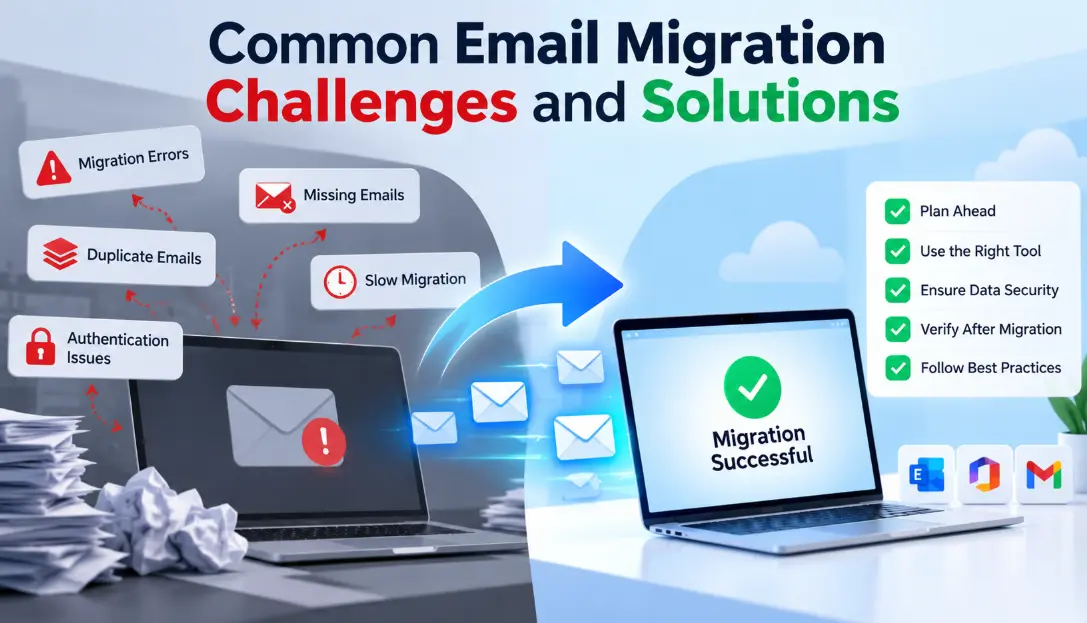
Almost every migration horror story traces back to one of five things: no test batch before the full run, throttling that quietly kills a job mid-transfer, a protocol (usually IMAP) that never supported the item type everyone assumed it would, no way to tell a duplicate from a legitimately re-sent message, or a cutover window nobody actually measured. None of these need expensive tooling to avoid. They need a plan that treats migration as a project with checkpoints, not a copy-paste job you run once and hope for the best.
None of what follows is exotic. Corrupted PST files, mailboxes that hit a size wall, folders that map to the wrong place, contacts that migrate without their photos: these are the same handful of issues that show up whether you’re moving fifteen mailboxes for a law firm or fifteen thousand for an enterprise. What changes is the blast radius when they go wrong.
The sections below are organized the way problems actually surface: data integrity first, then uptime, then the platform-specific traps, then the process failures that have nothing to do with software at all.
A Five-Step Framework That Prevents Most of This
Before getting into individual failure modes, it helps to have the shape of a migration that doesn’t go sideways. Every method below (manual export/import, a native admin tool, or third-party software) fits inside this same sequence.
Inventory before you touch anything. Count mailboxes, sizes, item counts, and anything with a size close to a platform limit. You can’t plan a migration window for data you haven’t measured.
Migrate a small batch first. Five to ten mailboxes that represent your worst cases (biggest size, oldest data, weirdest folder structure) tell you more than a test plan ever will.
Validate against a count, not a glance. Compare item counts and folder structure between source and destination for the test batch before scaling up. “It looks fine” is how missing folders get discovered a month later.
Run the full migration in scheduled batches, not one long job. Batches are easier to retry, easier to throttle around, and limit how much data is in flight if something breaks.
Keep the source system live and untouched until users have confirmed the destination for a few working days. Deleting the old mailbox on migration night is how a missed folder becomes unrecoverable.
Mail keeps flowing during the move, so client emails and internal threads don’t just vanish into a cutover window nobody planned for.
A migration that can prove what moved, by item count rather than by eye, is one you can defend if someone later asks where a message went.
Encrypted transfer, scoped access, and a record of who moved what protect you long after the migration itself is finished.
Types of Email Migration
“Email migration” covers a wider range of jobs than people usually assume, and the risks change depending on which one you’re doing.
| Migration type | What it involves | Main risk |
|---|---|---|
| On-premises to cloud | Moving mailboxes from a self-hosted Exchange server to a hosted platform such as Microsoft 365. | Local bandwidth and legacy schema differences slow the transfer and can break custom transport rules. |
| Cloud to cloud | Moving between two hosted platforms, most often Google Workspace and Microsoft 365, without ever touching an on-premises server. | API rate limits on both ends, plus label-to-folder mapping differences that distort how mail is organized. |
| Cross-protocol | Moving from an IMAP-based provider into Exchange or a similar platform with fuller feature support. | Calendars, contacts, and rules don’t exist on the source side to migrate in the first place. |
| File-based consolidation | Converting or merging PST and OST files, often after a server decommission or an employee offboarding. | Orphaned OST files with no live mailbox behind them, and PST files already sitting near a size limit. |
| Tenant-to-tenant | Moving mailboxes between two Microsoft 365 tenants, typically after a merger, acquisition, or company split. | Licensing and identity mapping between tenants, which is easy to underestimate next to the mail data itself. |
Knowing which of these you’re actually running changes what “done” looks like. A cross-protocol migration that only moves email and calls it finished has left calendars and contacts behind by design, not by accident, and someone needs a separate plan for those before the project can be called complete.
Data Loss and Corrupted Mailboxes
This is the one people worry about most, and it’s usually not the migration tool’s fault. It’s what the mailbox looked like going in.
| What causes it | Why it happens | What actually fixes it |
|---|---|---|
| Corrupted PST/OST before migration | Large PST files accumulate integrity errors over years of use, especially past a few gigabytes, and Outlook doesn’t always warn you. | Run an inbox repair (scanpst.exe) or a dedicated PST/OST repair pass before migrating, not after something goes missing. |
| Interrupted transfer | A dropped connection, a laptop that went to sleep, or a server-side timeout stops the job partway with no clear record of where it stopped. | Use a method with resumable, incremental sync so a retry picks up from where it left off instead of starting over. |
| Unsupported item types silently skipped | Some methods migrate the inbox and drop recurring calendar exceptions, delegated permissions, or categories without an error. | Check item counts by folder and item type after the test batch, not just total mailbox size. |
| No pre-migration backup | If the only copy of the data is mid-transfer when something fails, there’s nothing to fall back on. | Export a backup PST or use a source snapshot before starting, and don’t decommission the source mailbox until the destination is verified. |
Downtime and Business Disruption
Nobody schedules a migration expecting zero downtime, but plenty of teams underestimate how long theirs will actually take, and mail flow is what breaks first.
The cutover window is usually the choke point. MX record changes can take anywhere from a few minutes to 48 hours to propagate fully across every DNS resolver a sender might use, which means mail can bounce or land in the old system for a window you don’t fully control. Two approaches handle this differently:
- All mailboxes move in one window, then MX records switch.
- Simplest to plan, but the whole organization feels any delay.
- Works well under a few hundred mailboxes with a clear off-hours window.
- Users move in waves while both systems run in parallel.
- Needs mail routing between old and new systems during the overlap.
- Adds setup time, but each wave’s disruption stays contained.
Whichever you pick, tell people what “downtime” actually means for them in advance. A short mail-flow gap over a weekend is invisible to most users. The same gap during business hours, with no warning, generates a support ticket for every unread email that arrives late.
Compatibility Between Platforms
This is where migrations built around one protocol run into the limits of another, and it catches experienced admins as often as first-timers.
| Platform pairing | The compatibility trap |
|---|---|
| IMAP to anything | IMAP was built to synchronize folders and messages. It has no concept of calendars, contacts, tasks or rules, so a straight IMAP migration leaves all of that behind unless a separate method handles it. |
| Legacy Exchange (2010/2013) to Exchange Online | Older schema versions, custom transport rules, and public folders don’t map cleanly to the cloud equivalents; some need to be rebuilt rather than migrated. |
| Google Workspace to Microsoft 365 | Labels aren’t folders. A message with three Gmail labels either becomes three copies or one message in one folder, depending on the tool, and recurring calendar events with Google-specific settings don’t always translate. |
| OST to PST | An OST file is a cached, offline copy tied to a specific Exchange profile. If the original mailbox is gone or inaccessible, converting the orphaned OST needs a method that doesn’t depend on live server access. |
The fix isn’t a single tool that magically handles every pairing. It’s confirming, before migration day, which item types your chosen method actually supports for your specific source and destination, and treating anything it doesn’t cover as a separate task with its own plan.
Duplicate Emails After Migration
Duplicates are almost never a data problem. They’re a re-run problem.
If duplicates have already happened, don’t delete blind. Sort by message ID or by exact timestamp and sender rather than subject line alone. Two genuinely different emails can share a subject; they almost never share a server-assigned message ID.
Broken Folder Structures, Metadata and Attachments
Even a technically successful migration can feel broken to the end user if it lands in the wrong shape. A few things worth checking specifically, rather than assuming they carried over:
Security and Compliance Risk
A migration is a moment when a large volume of sensitive data is moving between systems, sometimes across regions, which makes it exactly the wrong time to relax on security basics.
Keep a log of what moved, when, and under whose authorization. It’s tedious, and it’s also the difference between a five-minute answer and a genuine problem when an auditor or a client asks who had access to their mailbox data during a migration eighteen months ago.
Large Mailboxes and Bandwidth Limits
Size-related failures usually come from one of two directions: a hard platform limit, or server-side throttling that isn’t a limit exactly, but behaves like one.
| Limit | What it actually is | How to work around it |
|---|---|---|
| PST file size (Unicode format) | Recommended maximum is 50GB in Outlook 2010 and later, even though the format can technically go larger; performance degrades well before the hard ceiling. | Split large mailboxes into multiple PSTs by date range or folder rather than forcing one oversized file. |
| Exchange/Office 365 migration throttling | The Mailbox Replication Service intentionally paces migration jobs to protect server performance, which slows large batches more than a bandwidth test would predict. | Run large migrations in smaller concurrent batches during off-peak hours rather than one giant job. |
| API rate limits (Google Workspace, Microsoft Graph) | Cloud-to-cloud migrations move through API calls with per-minute quotas, which caps effective throughput regardless of your actual network speed. | Spread large tenant migrations across a longer window and multiple batches instead of racing the quota. |
| Local network bandwidth | On-premises to cloud migrations are often bottlenecked by the office’s own upload speed, not the destination platform. | Schedule the heaviest batches outside business hours so migration traffic isn’t competing with everyone’s regular workday. |
User Adoption After the Move
The technical migration can be flawless and the project can still feel like a failure if nobody prepared the people using the mailboxes for what changes.
- Tell users the date, expected downtime window, and what to save locally if anything.
- Flag anything that won’t carry over (old rules, signatures, connected apps) so it’s not a surprise.
- Give one point of contact for migration-day questions, not a general help desk queue.
- Expect a short spike in support tickets in the first two or three working days.
- Ask a handful of users to spot-check specific folders rather than “everything,” which nobody actually does.
- Keep the old system read-only and accessible for a defined grace period before decommissioning it.
Manual, Native or Third-Party: Choosing a Method
There isn’t a universally correct choice here. There’s a correct choice for your mailbox count, your platform pairing, and how much you can afford to get wrong.
| Approach | Where it holds up | Where it struggles |
|---|---|---|
| Manual export/import (drag-and-drop, native Import/Export wizard) | A handful of small mailboxes, one-off moves, no budget for tooling. | No resume on failure, no item-count validation, doesn’t scale past a few mailboxes without becoming a full-time job. |
| Native platform tools (Exchange MRS batches, Google Workspace Migration Service) | Well-supported for same-vendor moves, no extra cost, integrates with existing admin permissions. | Cross-platform pairings (IMAP to Exchange, Google to Microsoft) are often only partially covered, and logging can be thin. |
| Third-party migration software | Built specifically for cross-platform pairings, with incremental sync, item-count reporting, and support for orphaned OST files that have no live server to connect to. | Adds a licensing cost, and quality varies a lot between vendors, so validate item-type support against your specific source and destination before committing. |
Whichever column you land in, the same test applies: can it prove what moved, can it resume without duplicating, and does it actually support every item type your mailboxes contain, not just email.
What Drives Cost and Timeline
Two migrations with the same mailbox count can take wildly different amounts of time and budget. The variables that actually move the number are rarely the ones people guess first.
| Factor | Why it matters more than mailbox count |
|---|---|
| Total data volume, not mailbox count | A hundred mailboxes averaging 2GB each move faster than ten mailboxes averaging 40GB, even though the second group has far fewer accounts. |
| Item count and age | Old mailboxes with years of small items (calendar invites, read receipts, notifications) can take longer per gigabyte than a mailbox full of a few large attachments. |
| Cross-platform complexity | A same-vendor move (Exchange to Exchange Online) is close to a straight copy. A cross-platform move needs mapping logic for every item type, which adds processing time on both ends. |
| Available migration window | Squeezing a large migration into a single weekend forces bigger concurrent batches, which runs straight into throttling limits and can extend the job rather than shorten it. |
| Validation and cleanup time | The transfer itself is often the smaller half of the project. Checking item counts, chasing down the folders that didn’t map correctly, and handling exceptions usually takes as long as the move. |
A useful rule of thumb: budget as much calendar time for validation and exception handling as you budget for the transfer itself. Teams that only plan for the copy step are the ones who end up “still finishing the migration” weeks after the date they told everyone it would be done.
Mistakes That Cause Most Migration Failures
Pre-Migration Checklist
| Step | Why it matters |
|---|---|
| Inventory mailbox count, sizes and item counts | Sets realistic timing and flags anything close to a size limit before it becomes a problem mid-job. |
| Confirm admin permissions on both source and destination | Missing permissions are one of the most common causes of a migration stalling partway through. |
| Repair or back up source mailboxes | A corrupted source file will migrate its corruption unless it’s fixed first. |
| Run a small test batch and validate item counts | Catches item-type and mapping issues while the blast radius is five mailboxes, not five hundred. |
| Schedule batches around business hours and throttling limits | Avoids competing with regular network traffic and reduces the chance of a throttled job timing out. |
| Tell users the date and what won’t carry over automatically | Prevents the support-ticket spike that comes from surprise rather than actual data loss. |
| Keep the source system live until users confirm the destination | The only real rollback plan is a source that still exists if something’s missing. |
| Validate again after full migration, not just after the test batch | A method that worked cleanly on five mailboxes can still hit an edge case in mailbox six hundred. |
Post-Migration Validation Checklist
The migration job finishing without an error message is not the same thing as the migration being done. This is the pass that actually confirms it.
| Check | What you’re actually confirming |
|---|---|
| Item counts match, folder by folder | Nothing was silently skipped for a batch of mailboxes, not just the test group. |
| Calendar events, including recurring ones, land correctly | Recurring meeting exceptions and reminders, which are the most commonly dropped calendar detail, survived the move. |
| Sent items and drafts are present | Some IMAP configurations don’t expose Sent items the same way, so this folder is worth checking specifically. |
| Mail flow works both directions | Internal and external senders can reach the new mailbox, and no messages are looping back to the old system. |
| Mobile devices and connected apps reconnect | Phones, CRM plugins, and shared calendar integrations are pointed at the new mailbox rather than quietly failing against the old one. |
| A sample of users confirms specific folders | Real-world spot checks catch mapping issues that an automated count can miss, especially around categories and flags. |
Quick Glossary
| Term | What it means |
|---|---|
| Cutover migration | All mailboxes move in a single window, followed by one switch of the mail flow records. |
| Staged/hybrid migration | Users move in waves while the old and new systems run in parallel and route mail between each other. |
| Incremental (delta) sync | A resume method that checks what already exists at the destination and only transfers what’s missing, instead of copying everything again. |
| Throttling | A deliberate slowdown applied by the server or service to protect performance, distinct from a bandwidth or hardware limit. |
| Orphaned OST | An offline Exchange cache file left behind after the original mailbox or profile it was tied to is no longer accessible. |
| Tenant-to-tenant migration | Moving mailboxes between two separate Microsoft 365 organizations, most common after a merger or divestiture. |
Frequently Asked Questions
Silent, partial data loss is the risk that causes the most damage, because a migration job can report “success” while still dropping items it doesn’t fully support, such as recurring calendar exceptions or contact photos. The fix isn’t a specific tool. It’s validating item counts between source and destination on a test batch before trusting the same method on everything else.
It depends more on total data volume and server-side throttling than on the number of mailboxes. A batch of small mailboxes can finish in hours, while a handful of very large ones can take days once Mailbox Replication Service throttling or API rate limits are factored in. Scheduling in smaller batches over a longer window is usually faster overall than trying to force everything through one job.
No, not on their own. IMAP is a protocol for synchronizing folders and messages; it has no concept of calendar events, contacts or tasks. If your source or destination uses IMAP, calendars and contacts need a separate migration path, such as exporting and importing them directly or using a tool that handles those item types outside the IMAP connection.
Duplicates almost always come from a job that gets re-run from the beginning after a partial failure, instead of resuming from where it stopped. Using a method with incremental, delta-aware sync (one that checks what already exists at the destination before copying) prevents this. If duplicates have already happened, deduplicate by message ID or exact timestamp and sender, not by subject line alone.
Most corruption exists before the migration even starts, building up in large PST files over years of normal use, and simply carries over. Interrupted transfers (a dropped connection or a server timeout) can also damage a file mid-copy. Running a repair pass on the source file before migrating, and using a method that can resume rather than restart on failure, addresses both causes.
Some mail-flow disruption is close to unavoidable because MX record changes need time to propagate across DNS resolvers, sometimes up to 48 hours in edge cases. What’s avoidable is disruption during business hours: scheduling the cutover for evenings or weekends, or using a staged migration that moves users in waves, keeps the practical impact small even though a technical gap still exists.
Split the mailbox rather than forcing it through as one unit. For PST files, that means splitting by date range or by folder before or during migration, since the recommended maximum for a Unicode-format PST is 50GB even though the format supports larger files in theory. For cloud-to-cloud migrations, breaking a large mailbox into smaller scheduled batches works around API rate limits in the same way.
Manual export and import is usually enough for a handful of same-platform mailboxes. Once you’re dealing with more than a few dozen mailboxes, a cross-platform pairing (like Google Workspace to Microsoft 365, or an orphaned OST with no live server), or a need to prove what migrated, dedicated migration software earns its cost through incremental sync, item-count reporting, and support for item types manual methods handle poorly.
A cutover migration moves every mailbox in a single window and then switches mail flow all at once, which is simplest to plan but concentrates all the risk into one window. A staged or hybrid migration moves users in waves while the old and new systems run in parallel, so each wave’s disruption stays contained but the project takes longer to set up and manage.
A migration job reporting “complete” only means the transfer step ran without an error. Actual completion means item counts match between source and destination folder by folder, recurring calendar events and sent items are present, connected apps and mobile devices have reconnected to the new mailbox, and a sample of real users has confirmed their own folders look right.
Throttling is a deliberate pacing limit that a mail server or cloud API applies to protect its own performance, separate from any bandwidth or hardware limit on your end. Exchange’s Mailbox Replication Service and cloud provider APIs both throttle migration traffic, which is why running smaller batches over a longer window is often faster overall than pushing one large job as hard as possible.
It depends on the platforms involved. Same-vendor moves (Exchange to Exchange Online, for example) typically carry calendars and contacts along with email in one job. Cross-protocol moves involving IMAP do not, since IMAP has no concept of those item types, so they need their own export and import step regardless of which tool handles the email itself.
The Bottom Line
Almost none of the failure modes above are about missing technology. They’re about skipping a step: not testing on a small batch first, not validating by item count, not keeping the source mailbox alive as a safety net, not telling users what to expect. The migrations that go well aren’t the ones with the fanciest tooling. They’re the ones treated as a project with checkpoints rather than a single copy-paste job.
If there’s one habit worth adopting from this whole guide, it’s validating a small test batch by item count before scaling up to everything else. It costs an afternoon and it catches the majority of the problems covered here before they touch a single production mailbox.