Skip to content

Compare Office 365 Email Signature Managers

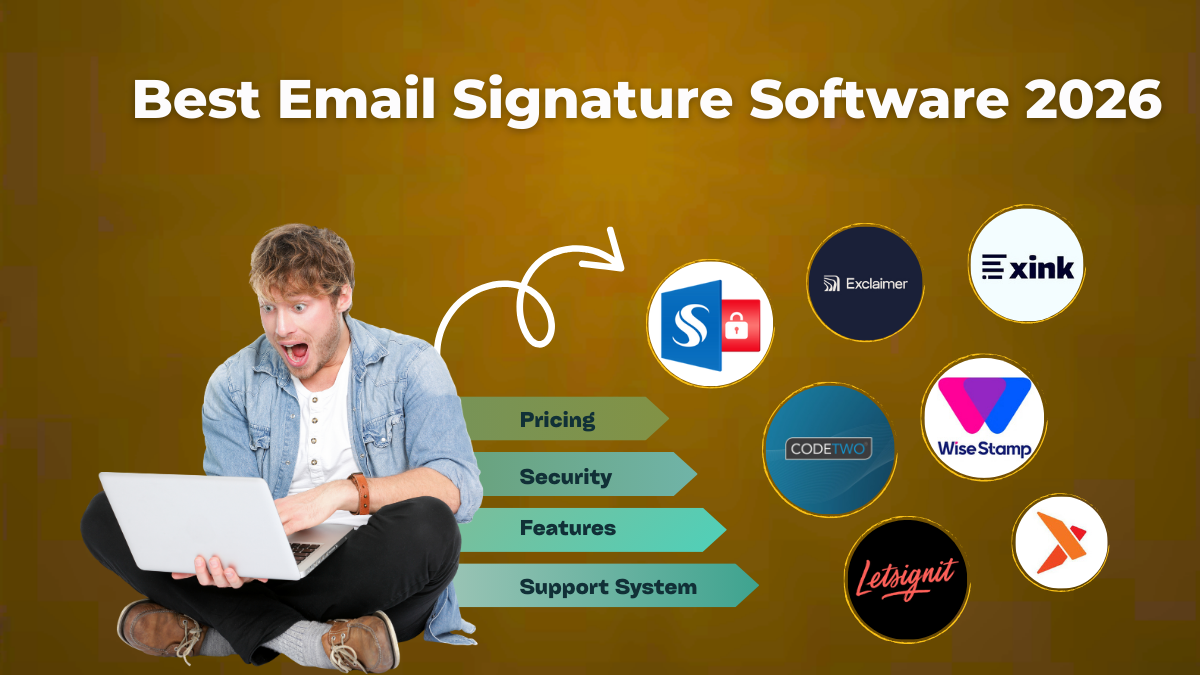
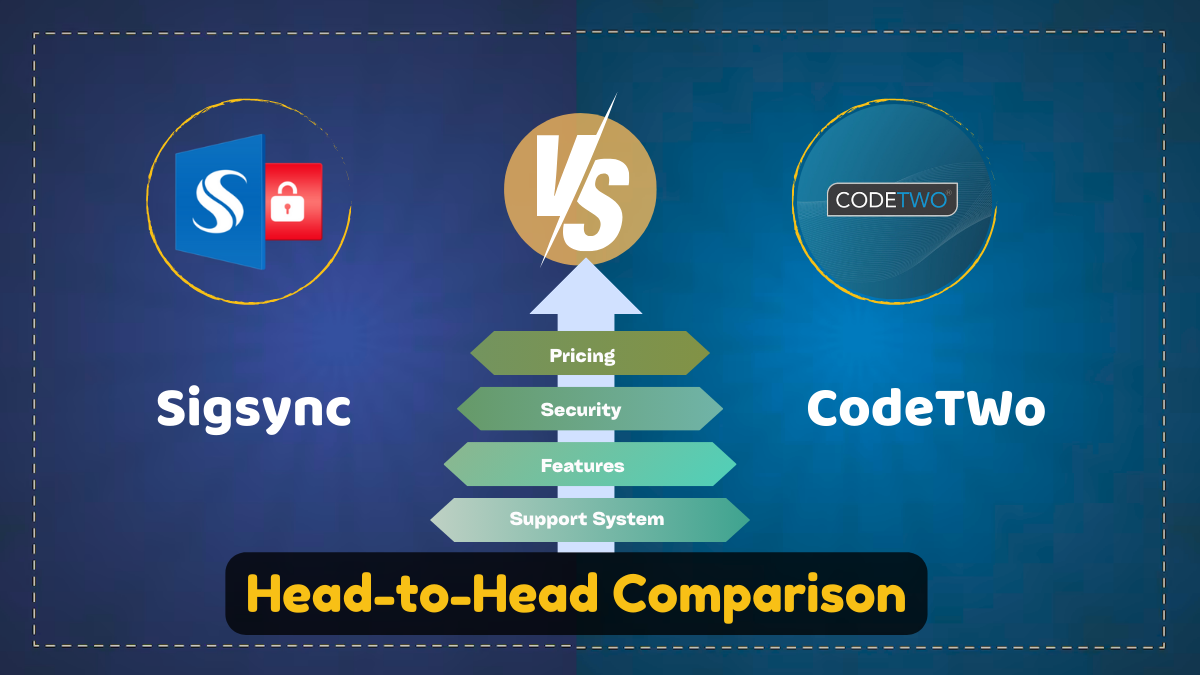
This neutral comparison helps IT administrators and business teams evaluate Office 365 email signature management tools based on pricing, features, user ratings, and enterprise readiness.

Select at least two tools to view a detailed comparison.

What Is an Email Signature in Office 365?

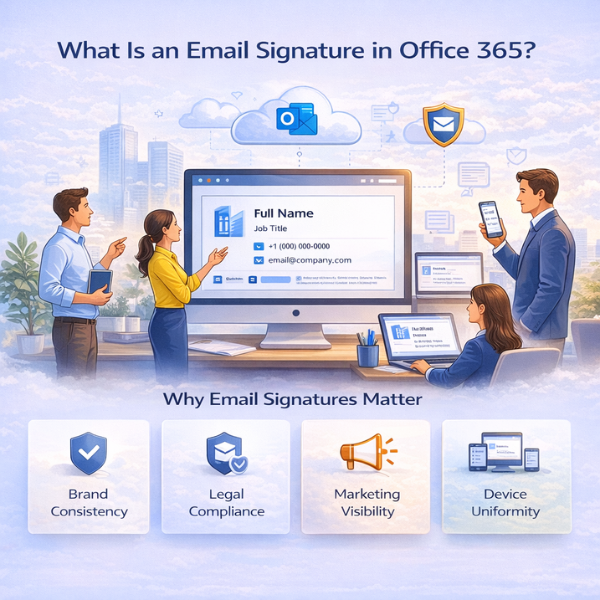
In the corporate world, an Office 365 Outlook email signature is far more than a simple sign-off. It functions as a branding asset, a compliance mechanism, and a scalable communication layer across the Microsoft 365 ecosystem.

As organizations grow, relying on individual users to manually manage their Microsoft Office 365 email signatures becomes inconsistent, error-prone, and difficult to govern. Centralized email signature management ensures every message aligns with company standards.

Why Email Signatures Matter

  • Brand consistency: Ensures every email from your domain presents a unified, professional identity.
  • Legal compliance: Automatically appends approved disclaimer text and regulatory notices.
  • Marketing visibility: Turns everyday email traffic into a controlled awareness channel.
  • Device uniformity: Maintains formatting across desktop, web, and mobile clients.
Office 365 email signature management concept illustration
Key takeaway: Email signatures in Office 365 are not personal preferences — they are enterprise communication assets that require centralized control, consistency, and compliance.
In-Depth Guide

Complete Guide to Office 365 Email Signature Management

Managing email signatures in Office 365 at scale requires more than basic Outlook settings. This guide explains the practical approaches, limitations, and best practices for deploying consistent and compliant signatures across modern organizations.

1. Native Approach vs Third-Party Solutions

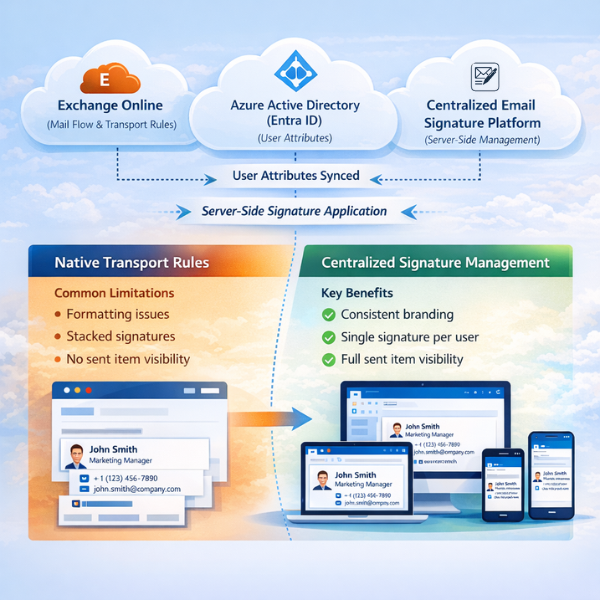
Native Office 365 email signature controls rely on Exchange transport rules to append signatures. While cost-effective, this approach often introduces formatting limitations, signature stacking, and limited visibility in sent items.

2. Setting Up Company-Wide Rules

Administrators can configure Exchange transport rules to apply a unified disclaimer or HTML signature. However, mapping Azure AD attributes such as name, title, and phone number requires precision and ongoing governance.

3. Managing Signatures Across Devices

Outlook desktop, web, and mobile clients handle signatures differently. Server-side stamping ensures a consistent Office 365 email signature regardless of the device used to send the message.

Office 365 email signature management dashboard illustration

Centralized Control

Manage thousands of users from a single dashboard without increasing IT overhead or manual configuration.

Core Concepts Covered

  • Native vs Third-Party Controls
  • Exchange Transport Rules
  • Azure AD Attribute Syncing

Outlook Guides & Email Security Best Practices

Practical, step-by-step Outlook tutorials designed for both end users and Microsoft 365 administrators.

Change Email Signature in Outlook

Learn how to change your Outlook email signature manually across desktop, web, and mobile clients when centralized management is not in place.
Read Outlook Signature Guide →

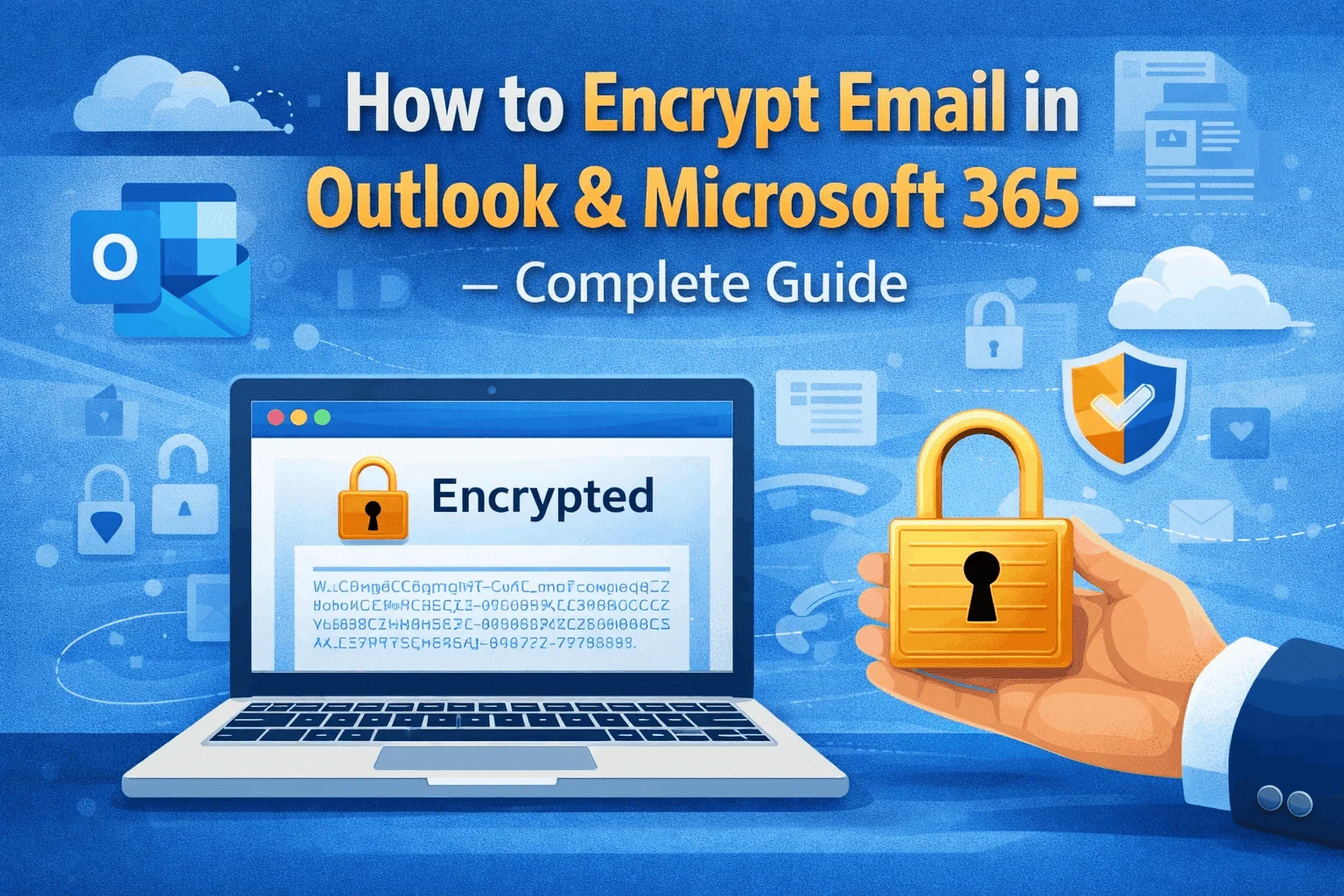
Encrypt Email in Outlook (Office 365)

Understand how Office 365 Message Encryption (OME) protects sensitive email content and ensures compliance.

View Encryption Steps →

Managing Outlook efficiently involves more than composing emails. Below are essential Outlook guides covering email signature configuration and secure message delivery using Microsoft 365 encryption features.

How to Change Signature in Outlook

Without a centralized email signature manager, Outlook users must update signatures manually. The steps differ slightly depending on the Outlook platform.

Outlook for Windows (Desktop)
  1. Open Outlook and go to File → Options.
  2. Select Mail and click Signatures.
  3. Create a new signature or edit an existing one.
  4. Add text, images, or paste HTML content.
  5. Assign default signatures for new and reply emails.
  6. Click OK to save changes.
Outlook on the Web (OWA)
  1. Click the Settings (gear icon).
  2. Navigate to Mail → Compose and reply.
  3. Enter your email signature.
  4. Enable automatic signature insertion.
  5. Save your settings.

How to Encrypt Email in Outlook

Email encryption is essential for protecting confidential data. Microsoft 365 Message Encryption (OME) allows Outlook users to secure messages without additional software.

Steps to Send an Encrypted Email
  1. Create a new email in Outlook.
  2. Go to the Options tab.
  3. Select Encrypt.
  4. Choose Encrypt-Only or Do Not Forward.
  5. Compose and send the message.
Important: If encryption options are unavailable, Azure Rights Management or OME may need to be enabled by your Microsoft 365 administrator.

HTML Email Signature Generator

4 templates. Fill details, provide Profile/Logo/QR/Banner URLs, then Generate. Copy or download the final HTML.

1) Choose template

2) Provide details

If empty, a rounded placeholder will be used.
Used by Template 4. If empty, a placeholder logo will be shown.
If provided, Template 3 will include this banner (stable 600px max width).
Select a template → fill fields → Generate. Social icons appear only when URLs are set.
The Email Signature Manager Explained

Why Centralized Email Signature Management Is Essential

Automating Office 365 email signatures is no longer optional for modern organizations. Centralized management ensures brand consistency, compliance, and operational efficiency.

An email signature manager is a specialized software solution designed to automate the creation, deployment, and governance of email signatures across an organization. Unlike manual setups—where employees copy and paste templates—this approach gives IT and marketing teams centralized control over every Microsoft 365 email signature.

Key Functions of an Email Signature Manager

Automation

Automatically pulls user data such as name, title, department, and phone number from Azure Active Directory to populate Office 365 email signatures.

Role-Based Access

Allows marketing teams to manage company-wide email signatures without requiring administrative access to Exchange or Microsoft 365.

Campaign Scheduling

Enables scheduled promotional banners and announcements inside email signatures for specific timeframes.

Multi-Tenant Support

Supports enterprises managing signatures across multiple Microsoft 365 tenants, domains, or subsidiaries.

Centralized email signature manager dashboard for Office 365
Key takeaway: Centralized email signature management eliminates repetitive signature update requests, reduces IT workload, and ensures every email sent from your organization remains professional and compliant.

Deep Dive: Centralized Email Signature Management

How server-side email signature management ensures consistency, compliance, and control across Microsoft Office 365.

Server-Side Control

Email signatures are applied in the cloud after the message leaves the user’s outbox. This guarantees that every Office 365 email includes the correct signature—regardless of the device used.

Mobile Consistency

A centralized Microsoft Office 365 email signature appears identical on desktop, Outlook on the web, and mobile devices—solving one of the biggest native Outlook limitations.

Compliance & Legal Assurance

Mandatory legal disclaimers and compliance text are automatically appended to every outgoing email without relying on user behavior or manual updates.

How Centralized Email Signature Management Works

Centralized email signature management shifts control from individual users to a secure cloud-based service integrated with Microsoft 365. This approach ensures complete visibility, accuracy, and consistency across all outbound email communication.
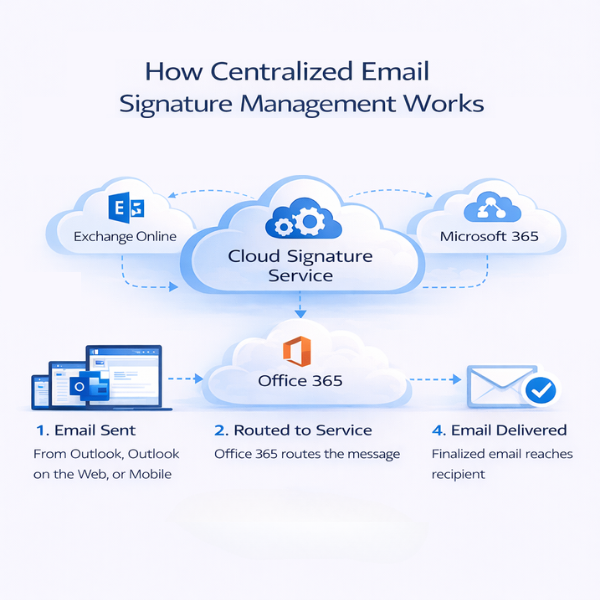
  1. Email is sent from Outlook, Outlook on the web, or a mobile device.
  2. The message is routed from Office 365 to the signature service.
  3. User data is retrieved from Azure Active Directory.
  4. The correct email signature template is applied dynamically.
  5. The finalized email is delivered to the recipient.
Centralized email signature management workflow in Microsoft Office 365

Total Compliance

Ensures every outgoing email includes required legal disclaimers and compliance statements—without exceptions.

Brand Integrity

Prevents users from modifying fonts, colors, layouts, or adding unapproved content that violates brand guidelines.

Real-Time Updates

Any change to a company-wide email signature is reflected instantly across all users, devices, and locations.

Centralized email signature management is essential for organizations that require secure, consistent, and professional communication across Microsoft Office 365.

Professional Email Etiquette & Out of Office Guidelines

Professional standards, disclaimer examples, and Out of Office best practices for business email communication in Office 365.

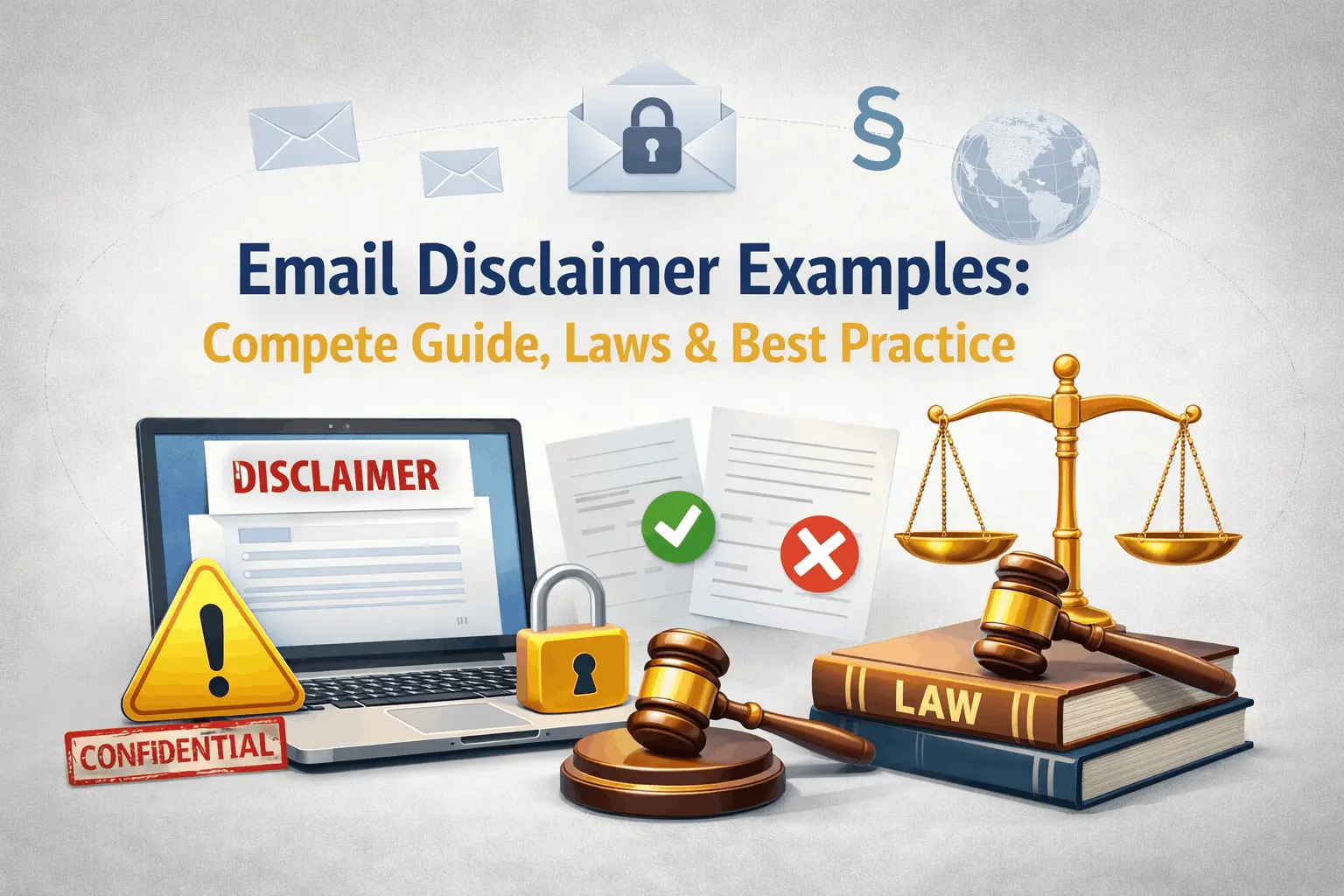
Email Signature Disclaimer Examples

Legal disclaimers are often mandatory in company-wide email signatures. Below are commonly used, professionally accepted templates.

Confidentiality Disclaimer

This email and any files transmitted with it are confidential and intended solely for the use of the individual or entity to whom they are addressed. If you have received this email in error, please notify the system manager.

Standard Liability Disclaimer

Views and opinions presented in this email are solely those of the author and do not necessarily represent those of the company. The company accepts no liability for any damage caused by any virus transmitted by this email.

Out of Office (OOO) Messages

Beyond technical management, professional communication requires adherence to standards. This section provides disclaimer examples, email etiquette tips, and best practices for out of office messages.

Out of Office Message Best Practices

Your Out of Office message should be informative, concise, and actionable. It should clearly state availability and provide alternate contacts when necessary.

Professional Out of Office Template

Thank you for your email. I am currently out of the office with no access to email. I will be returning on [Date]. For urgent matters regarding [Project], please contact [Colleague Name] at [Email Address].

Most Office 365 email signature management tools allow different Out of Office replies for internal and external recipients.

  • External replies: Formal, client-facing, and concise.
  • Internal replies: Functional and may include escalation details.

Professional Email Etiquette Guidelines

  • Subject Lines: Be clear and specific. Avoid vague titles.
  • Reply All: Use only when all recipients need the information.
  • Email Signature: Keep signatures clean and lightweight.
  • Tone: Maintain professionalism. Avoid slang and excess punctuation.

Email Etiquette Quick Tips

  • Do not use “Reply All” unless absolutely necessary
  • Avoid large images in email signatures
  • Always update Out of Office messages before you leave

Company-Wide Best Practices

Strategic Deployment

Implementing a signature policy isn’t just IT’s job. It requires coordination across departments.

IT Dept
Data Accuracy
Marketing
Branding
Legal
Compliance

Deploying a company-wide email signature requires collaboration between IT, HR, and Marketing. Here are the best practices for Office 365 email signature management to ensure a smooth rollout and ongoing maintenance.

For IT Administrators

Ensure your Active Directory data is clean. An email signature manager relies on accurate data attributes. If a phone number is missing in AD, it will likely be missing in the signature. Use Office 365 email signature software that supports “conditional visibility” to hide empty fields automatically.

For Marketing Teams

Keep designs simple. Complex HTML in an Office 365 email signature can break when viewed on different email clients. Stick to web-safe fonts and optimize images for fast loading. Use the centralized email signature management console to run A/B tests on promotional banners.

For HR and Legal

Standardize job titles and department names. Define the legal disclaimer text required for different regions. A robust email signature service can apply different disclaimers based on the sender’s country or department.

Office 365 Email Signature Software

Exploring the technology, architecture, and deployment models behind modern tools.

Office 365 email signature software is a category of SaaS platforms integrated directly with Microsoft 365, enabling centralized signature control across all users and devices.

These tools operate either at the server level, within Outlook clients, or through a hybrid architecture designed to ensure consistency, compliance, and visibility.

Architecture Types
  • Server-Side Injection: Emails are routed through a signature service cloud and stamped after sending.
  • Client-Side Integration: Outlook Add-ins insert signatures during composition.
  • Hybrid Mode: Combines client visibility with server-side reliability for mobile devices.
💡 Enterprise Insight: Hybrid deployment is the most commonly adopted model for large Microsoft 365 tenants.

Troubleshooting Office 365 Email Signatures

Common Outlook and Office 365 email signature issues explained with clear root causes and technically correct fixes.

Signature Missing on Mobile Devices

Problem
Email signatures do not appear when emails are sent from Outlook Mobile, iOS Mail, or Android mail apps.
Root Cause
Mobile clients do not use locally configured Outlook desktop signatures and bypass client-side rules entirely.
Recommended Fix: Apply signatures at the server or cloud level so every email receives a consistent Office 365 email signature regardless of device.

Images Appear as Attachments

Problem
Logo or banner images appear as file attachments instead of inline images within the email signature.
Root Cause
Images are embedded directly into the signature HTML rather than referenced from hosted image URLs.
Recommended Fix: Host signature images externally over HTTPS and reference them in the HTML to ensure proper rendering across Outlook clients.

Duplicate Signatures Added

Problem
Emails contain two signatures, making messages appear cluttered or unprofessional.
Root Cause
Client-side Outlook signatures remain enabled while a centralized or server-side signature is also applied.
Recommended Fix: Disable local Outlook signatures and enforce a single centralized signature policy across the organization.

Formatting Breaks on Reply or Forward

Problem
Signature spacing, fonts, or alignment break when replying to or forwarding emails in Outlook.
Root Cause
Outlook rewrites HTML during replies and forwards, stripping unsupported CSS and advanced formatting.
Recommended Fix: Use Outlook-safe HTML with inline styles only or apply signatures server-side to preserve formatting.

Frequently Asked Questions

Expert answers to common Office 365 email signature questions.

How do I change my signature in Outlook manually?+
Open Outlook, go to File → Options → Mail → Signatures. From here, you can create or edit your signature and assign it to new messages and replies. This method works for individual users but does not enforce company-wide consistency.
How do I send encrypted email in Outlook?+
In Outlook, compose a message and select Encrypt from the Options menu. Microsoft 365 encryption ensures messages are protected during transit and access is restricted to intended recipients.
What are good disclaimer examples for my email signature?+
Common disclaimer examples include confidentiality notices, liability disclaimers, and regulatory compliance text. These are often required for legal or industry compliance and are best applied using centralized email signature management.
How do I set up an Out of Office message in Outlook?+
Go to File → Automatic Replies in Outlook. You can configure different messages for internal and external senders. For consistency, many organizations manage OOO messages centrally.
How do I manage a company-wide email signature effectively?+
The most effective approach is using a centralized email signature manager. This allows IT teams to control templates, enforce branding, and ensure signatures are applied across all users and devices.
What is the best way to manage signatures for Office 365?+
The best approach is server-side or hybrid Office 365 email signature software. This ensures signatures are applied consistently, even on mobile devices and web clients.
How does centralized email signature management work?+
Emails are routed through a signature service that inserts the correct signature based on user attributes such as department, location, or recipient type before delivery.
Can I set up an Office 365 email signature for mobile devices?+
Yes. Server-side email signature management ensures signatures are applied regardless of whether emails are sent from Outlook Desktop, Web, or mobile devices.
What is an email signature service?+
An email signature service is a cloud-based solution that manages, updates, and applies email signatures centrally for an organization. It removes the need for users to manage signatures manually.
What does an email signature manager do?+
An email signature manager controls signature templates, integrates with Azure AD, applies disclaimers, and ensures consistent branding across all outgoing emails.
Why do I need Office 365 email signature software?+
Manual signatures are inconsistent and difficult to manage at scale. Office 365 email signature software ensures compliance, branding, and reliability across users and devices.
Is centralized email signature management secure?+
Yes. Reputable email signature services follow strict security standards such as ISO 27001 and SOC 2, and do not store email content.
What happens to the email signature on reply emails?+
Most email signature managers can apply shortened or suppressed signatures on replies to avoid clutter, while still maintaining branding and compliance.