
Can You Delete an Email You Sent? The Honest Answer (and What Actually Works)
You hit send, and a half-second later your stomach drops — wrong attachment, wrong person, a typo in the subject line to your CEO. So can you delete an email you already sent? The short answer: sometimes, in specific conditions. This guide explains exactly when it’s possible, when it isn’t, and what to do the moment it happens.
You cannot reach into someone’s inbox and delete an email once it has truly been delivered — no mainstream email service gives you that power. What you can do falls into two buckets: Undo Send, a short delay window (5–30 seconds) that stops the email before it ever leaves, which works for anyone; and message recall, which can remove an unread email but only inside the same organization (e.g. Outlook to Outlook at the same company). Sent to a Gmail address from your work account? Recall won’t work — but the fixes below still help.
Let’s be honest about why you’re here. Something just went out that shouldn’t have, and you’re hoping there’s a magic “undelete from their inbox” button. It’s one of the most stressful little moments in modern work life — that instant of realizing the email is gone and you can’t take it back.
So here’s the truth, delivered plainly: email wasn’t designed to be un-sent. Once a message is delivered to a recipient’s mailbox on a different system, it’s their copy now, sitting on their server, and you have no reach into it. That’s the honest baseline everyone should understand.
But — and this is the useful part — that baseline has real exceptions, and modern email has added genuine safety nets that didn’t exist a few years ago. Depending on how fast you act, what email service you use, and who you sent it to, you may have more options than you think. This guide walks through every one of them, starting with the fastest.
The Two Ways to “Delete” a Sent Email
People use “delete a sent email” to mean two genuinely different things, and understanding the difference is the key to knowing what’s possible in your situation.
The first is reliable but time-limited. The second is powerful but conditional. Almost everything else you’ve heard about “deleting” sent emails is a version of one of these two. Let’s take them in order — because if you’re reading this fast enough, option one might still save you.
Undo Send: The Fastest Fix (and It Works for Everyone)
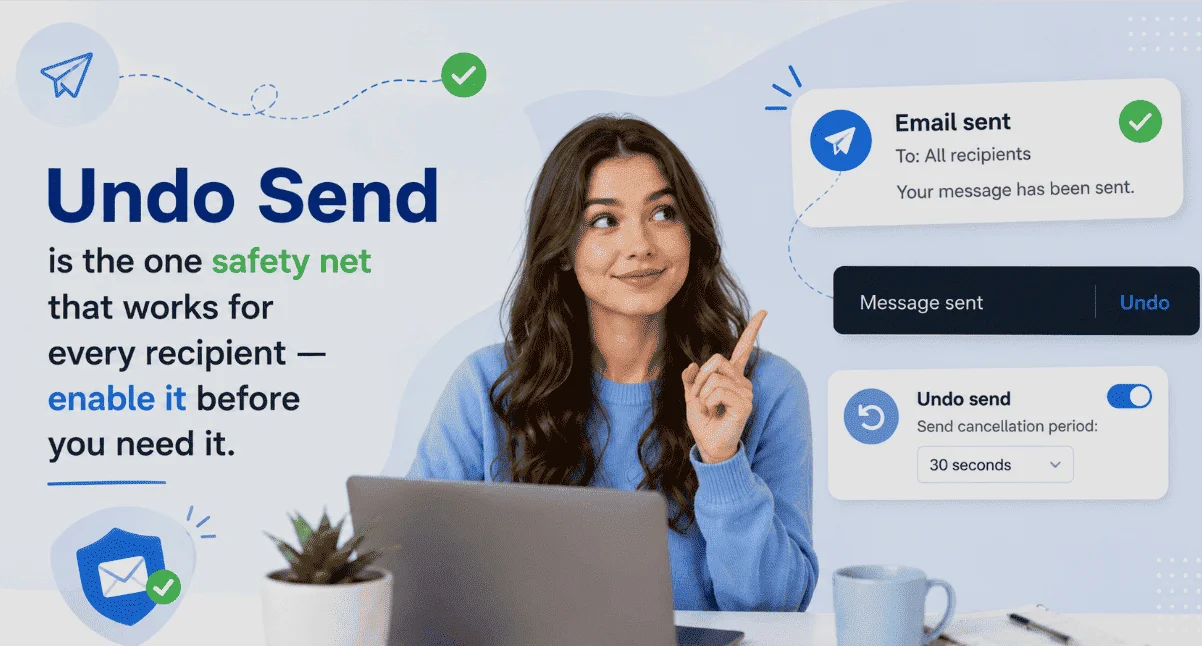
Undo Send is the single most useful email safety net, because it doesn’t depend on the recipient, their email provider, or your organization. It works by delaying your outgoing mail for a short window — during which a single click cancels the send entirely. The message simply never leaves. No recipient ever sees it, no notification is generated, nothing.
The catch is the window is short, and in most services you have to turn it on and set the delay in advance. If you haven’t yet, do it now — it’s the best two minutes of email housekeeping you’ll ever spend.
- Click the gear icon → See all settings.
- On the General tab, find Undo Send.
- Set the cancellation period to 30 seconds (the maximum).
- Scroll down and Save Changes. Now an “Undo” button appears briefly after every send.
- Click the gear icon (⚙) to open Settings.
- Go to Mail → Compose and reply.
- Scroll to Undo send and set the delay (up to 10 seconds on the web, up to 120 seconds in the new Outlook desktop app).
- Click Save. An Undo button now appears after you send.
Message Recall: Pulling Back a Delivered Email
If your Undo Send window has already passed and the email has landed, message recall is the next possibility — but it comes with real conditions, and it’s important to understand them before you pin your hopes on it.
Recall attempts to reach into the recipient’s mailbox and delete the message that’s already there. In practice, it only works reliably in a specific scenario: you and the recipient are both on the same email system inside the same organization (typically Microsoft 365 or Exchange at the same company), and the recipient hasn’t opened the message yet. Recall is a business-email feature, not something that works across the open internet.
Miss any one of these and the recall will typically fail:
There’s good news on the horizon here. Microsoft’s newer cloud-based message recall (rolled out across Exchange Online in late 2025) is more reliable than the old version and generates a per-recipient report so you can actually see whether it worked. And Microsoft has confirmed cross-tenant recall is planned for general availability around August 2026 — meaning recall between different organizations may become possible, though it will require the other organization’s IT admins to add you to a “recall allow list” first. For now, though, treat recall as an internal-only tool.
If You Use Gmail: What You Can (and Can’t) Do
Gmail keeps this refreshingly simple — there’s essentially one tool, and it’s Undo Send.
If You Use Outlook: What You Can Do
Outlook gives you both tools — Undo Send for any email, and Message Recall for internal ones. Here’s how recall works when the conditions above are met.
- Open your Sent Items folder.
- Double-click the message to open it in its own window.
- On the ribbon, select Recall Message (in classic Outlook: Actions → Recall This Message).
- Confirm, then watch for the Message Recall Report email showing whether it succeeded per recipient.
- You can’t recall from Outlook on the web in the classic sense — use the new Outlook or desktop app.
- Recall is triggerable from new/classic Outlook, Mac, and mobile.
- If conditions aren’t met, Outlook may just send a separate “I’d like to recall” notice — which doesn’t delete anything and actually draws attention to the email.
You Sent It to a Gmail Address from Your Work Account — Now What?
This is the most common real-world version of the problem, and it deserves a straight answer: if you sent an email from your work Outlook to an external address (a client’s Gmail, a personal account, another company), recall will not work. Recall only functions inside your own organization. So once the Undo Send window has passed, the email is in their inbox to stay.
That doesn’t leave you helpless, though. Here’s the realistic playbook when the technical options are exhausted:
If It’s Already Too Late: Damage Control
Sometimes the email is well and truly gone — read, delivered, external, past every window. When that happens, the skill shifts from technical to human. And honestly, a graceful recovery often leaves a better impression than the original mistake ever hurt.
Please disregard my previous email — I sent it before it was ready. Here’s the correct information:
[correct content]
Apologies for the confusion, and thanks for your understanding.
Best,
[Your name]
A few principles for the too-late moment: act quickly (a fast correction reaches people before they’ve acted on the wrong version), keep it brief and non-dramatic (a calm one-liner beats a flustered paragraph of apology), and don’t over-apologize (everyone sends the wrong email sometimes; a simple “please disregard” is plenty). If the mistake was serious — wrong recipient on confidential material, an angry message you regret — a direct phone call is often the most respectful and effective way to address it.
How to Never Need This Article Again
The best way to delete a sent email is to never send the wrong one. A few small habits prevent the vast majority of send-regret moments:
Many send-regret moments come down to rushing. A little structure — a clear subject, a proper close, a consistent signature — slows you down just enough to catch mistakes. Our guide to email etiquette covers the habits that keep your emails polished and error-free every time.
Frequently Asked Questions
You cannot directly delete an email from someone’s inbox once it has been delivered — no mainstream email provider allows that. However, you have two real options depending on timing. If you act within seconds, Undo Send cancels the message before it leaves your outbox (this works for any recipient). If the email has already been delivered but you and the recipient are in the same organization on Microsoft 365 or Exchange and they haven’t opened it, message recall may be able to remove it. Outside those conditions — such as emailing an external Gmail address — the email cannot be deleted, and the best fix is a quick correction email.
No. Undo Send only works for a few seconds after sending (up to 30 seconds in Gmail, up to 120 seconds in the new Outlook desktop app), so after an hour that window is long gone. Message recall in Outlook also becomes far less likely to succeed after time passes, because the recipient has probably opened the email by then — and recall only works on unread messages within the same organization. After an hour, your realistic option is a follow-up correction email asking the recipient to disregard the previous message.
No. Deleting an email from your own “Sent” folder only removes your copy of it. The recipient already has their own separate copy in their inbox on their own mail server, and deleting yours has absolutely no effect on theirs. This is one of the most common misconceptions about email. The only ways to affect the recipient’s copy are Undo Send (before delivery) or message recall (in specific same-organization conditions) — never by deleting from your own folders.
No. Message recall only works when both the sender and recipient are inside the same organization on Microsoft 365 or Exchange. Emails sent to external addresses — a client’s Gmail, a personal Outlook.com account, or another company’s email — cannot be recalled. If you attempt a recall on an external message, it simply fails, and the recipient may receive a notification that you tried to recall it. (Microsoft has announced cross-tenant recall for around August 2026, but it will require the other organization to add you to a recall allow list, so it won’t be universal.)
Undo Send stops an email before it leaves your outbox — during a short delay window (seconds) after you click send, you can cancel it entirely, and it never reaches anyone. It works for every recipient on every provider because the email never actually goes out. Recall tries to delete an email after it has already been delivered to the recipient’s mailbox, which only works within the same organization on Microsoft 365/Exchange and only if the message is still unread. In short: Undo Send is a reliable pre-send safety net; recall is a conditional after-the-fact attempt that often fails.
With Undo Send, no — because the email never reaches them, there’s nothing to notice. With message recall, possibly yes: if the recall fails, the recipient often receives a notification saying you attempted to recall the message, which can actually draw their attention to it. This is why recall can sometimes backfire, making a reader more curious about an email they might otherwise have ignored. If discretion matters, Undo Send is far safer since it leaves no trace.
Not through normal email. The only mechanism that comes close is message recall, and it’s limited to unread messages between accounts in the same Microsoft 365 or Exchange organization. Some specialized secure-email and encryption tools (used in regulated industries) let a sender revoke access to a protected message even externally, but those require both the sender and the message to be set up in that specific secure system in advance — it’s not something you can do to an ordinary email after the fact. For a standard email already delivered to an external inbox, there is no remote delete.
The Bottom Line
So, can you delete an email you sent? Honestly — usually not once it’s truly delivered. But that’s not the whole story. If you’re fast, Undo Send saves you completely, for any recipient. If it’s an internal mistake caught early, recall might work. And if the email is truly gone, a quick, calm correction almost always sorts it out with less fuss than you fear.
The real lesson is that prevention beats panic. Turn on Undo Send at the maximum delay right now, add recipients last, and pause before sending anything emotional. Do that, and the gut-drop moment of a mistaken send becomes a rare event you can handle in seconds — instead of a scramble for a delete button that was never really there.