
Office 365 Migration, done the right way
Everything you need to plan and run a Microsoft 365 migration without it turning into a fire drill. We'll go through the migration types and how to pick one, what to line up before you start, and a plain 7-step walkthrough for moving mailboxes, SharePoint, OneDrive, and Teams — no downtime, nothing left behind.
What is Office 365 migration?
Office 365 migration (Microsoft renamed it Microsoft 365 migration) really just means moving your email and data into, out of, or between Microsoft 365 environments. That's mailboxes, shared and archive mailboxes, public folders, SharePoint, OneDrive, and Teams. You've got two routes to get there: Microsoft's built-in methods — cutover, staged, hybrid, and IMAP — or a dedicated migration tool. We'll cover both, then take you through the move one step at a time.
What Office 365 migration really means in 2026
Not long ago, "Office 365 migration" meant one specific job: pulling mailboxes off an on-premises Exchange server and pushing them up to the cloud. Most companies are past that now. These days the phrase covers a much wider mix of moves — and honestly, why you're migrating changes almost everything about how you should go about it.
In the real world it usually comes down to one of a handful of situations. You're switching off your last on-premises Exchange box. Two companies merged and now need to share one tenant. You're leaving a host like GoDaddy or Rackspace. You're moving off Google Workspace. Or you're cleaning up years of sprawl by folding several tenants into one.
The reason it's harder than a plain file copy is that you're almost never moving just email. A proper migration has to bring across shared mailboxes, archive mailboxes, public folders, calendars, contacts, SharePoint sites, OneDrive files, and Microsoft Teams — and put every permission and folder back exactly where people expect it. Do it well and nobody even notices. Do it badly and you'll be answering tickets for weeks.
Quick naming note. Microsoft dropped the "Office 365" name for most plans and calls it "Microsoft 365" now, but it's the same product and the same migration process. Plenty of people still search for both, so I'll use the two names interchangeably here.

Why and when businesses migrate
The kind of move you're making points you straight at the right type and method. These are the usual reasons people end up here:
- Cloud adoption — moving from on-premises Exchange or hosted email to Microsoft 365 for the first time.
- Mergers & acquisitions — consolidating two organizations into a single Microsoft 365 tenant.
- Tenant consolidation — cleaning up after years of separate departments buying their own subscriptions.
- Divestiture / spin-off — splitting one tenant's users and data into a new, separate tenant.
- Leaving a hosted provider — moving from GoDaddy, Rackspace, or similar into your own tenant.
- Platform switch — migrating from Google Workspace, Zimbra, or Zoho to Microsoft 365.
The 6 types of Office 365 migration
Pick the wrong type and you'll feel it in the budget. Here are the six options, who each one is really for, and the size limits that hold up in practice.
Cutover
Moves every mailbox from on-premises Exchange to Microsoft 365 in one batch. Fast and simple — but practical only for smaller orgs.
< 150 mailboxesStaged
Moves mailboxes in scheduled batches. Historically for older Exchange; now mostly replaced by hybrid or tool-based moves.
Phased rolloutsHybrid
Runs on-premises Exchange and Microsoft 365 together with shared identity and free/busy. Ideal for large or gradual moves.
150+ mailboxesIMAP
Microsoft's native method for moving email from an IMAP server — cPanel/hosting, Zimbra, Zoho, Yahoo, Rackspace. Migrates email only: not contacts, calendars, or tasks.
Hosted email · mail onlyTenant-to-tenant
Moves data between two Microsoft 365 tenants — the standard path for mergers, acquisitions, and consolidation.
M&A & consolidationGoogle & third-party
Moves Google Workspace, hosted Exchange, or legacy servers into Microsoft 365. Almost always done with a dedicated tool.
Cross-platform
| Type | Source → Destination | Typical size | Downtime | Approach |
|---|---|---|---|---|
| Cutover | On-prem Exchange → M365 | ≤150 rec. (2,000 max) | Low–Med | Native or tool |
| Staged | Legacy Exchange → M365 | Batches | Medium | Tool recommended |
| Hybrid | On-prem ↔ M365 | 150+ / enterprise | Low | Native + tool |
| IMAP | Hosted / IMAP email → M365 | Any | Low | Native or tool (mail only) |
| Tenant-to-tenant | M365 → M365 | Any | Low (with tool) | Third-party tool |
| Google / hosted | Workspace/GoDaddy → M365 | Any | Low | Third-party tool |
The native-tooling gap. Microsoft has no native one-click path for tenant-to-tenant migrations, or for moving SharePoint, OneDrive, and Teams content with permissions intact. Those scenarios almost always require a dedicated tool — exactly what the walkthrough below uses.
Native Microsoft methods vs. a migration tool
Microsoft's built-in methods don't cost anything and they're well documented. The catch is they were really designed for one job — getting on-premises Exchange up to the cloud. The minute you're dealing with two tenants, a tight cutover window, mixed workloads, or users who can't take any downtime, a paid tool usually pays for itself.
| Consideration | Native methods | Migration tool |
|---|---|---|
| Cost | Free | Per-mailbox / per-user license |
| Tenant-to-tenant | Not native | Purpose-built |
| SharePoint / OneDrive / Teams | Limited / manual | Included with permissions |
| Mailbox mapping | Manual / PowerShell | Automated |
| Throttling management | Manual | Auto-adjusted |
| Incremental / delta | Limited | Built-in, no duplicates |
| Skill required | High (PowerShell) | Low–Medium (GUI) |
Native or third-party? For a simple on-premises Exchange-to-cloud cutover, native methods can be enough. For tenant-to-tenant, Google Workspace, or mixed-workload moves, a dedicated tool is usually worth it. We weigh the leading options — features, pricing, and best-fit scenarios — in our Best Office 365 Migration Software 2026 guide.
Before you start: prerequisites
A clean migration starts well before the first mailbox moves. Get these sorted first:
- Global admin access to both source and destination tenants (or the source Exchange / Google environment).
- Destination licenses assigned, or ready to assign, to every target user.
- Domain added and verified on the destination, with a plan for the MX-record cutover.
- A full inventory — mailboxes, shared & archive mailboxes, public folders, groups, SharePoint, OneDrive, and Teams.
- A migration machine — a Windows PC/server with a stable connection to run the tool.
- Modern auth ready — OAuth 2.0 enabled; plan app registration/consent if MFA or security defaults are on.
Pro tip. A couple of days before cutover, drop your domain's MX record TTL to around 300 seconds. Then when you flip mail over to Microsoft 365, it switches in minutes instead of dragging on for hours.
Pre-migration checklist
When a migration goes sideways, it's nearly always skipped prep — not the tool. Run through this before you touch any data.
- Inventory everything you'll migrate; note item counts and sizes — plan in GB, not mailbox count.
- Clean up first — remove stale accounts and duplicates so you don't migrate junk.
- Right-size destination licenses so every target mailbox can receive data.
- Communicate to users — set expectations on timing and what changes.
- Run a pilot batch end-to-end before the full cutover.
- Keep source data intact until migration is verified — your rollback net.
- Schedule cutover for a weekend or off-hours window.
How to migrate Office 365, step by step
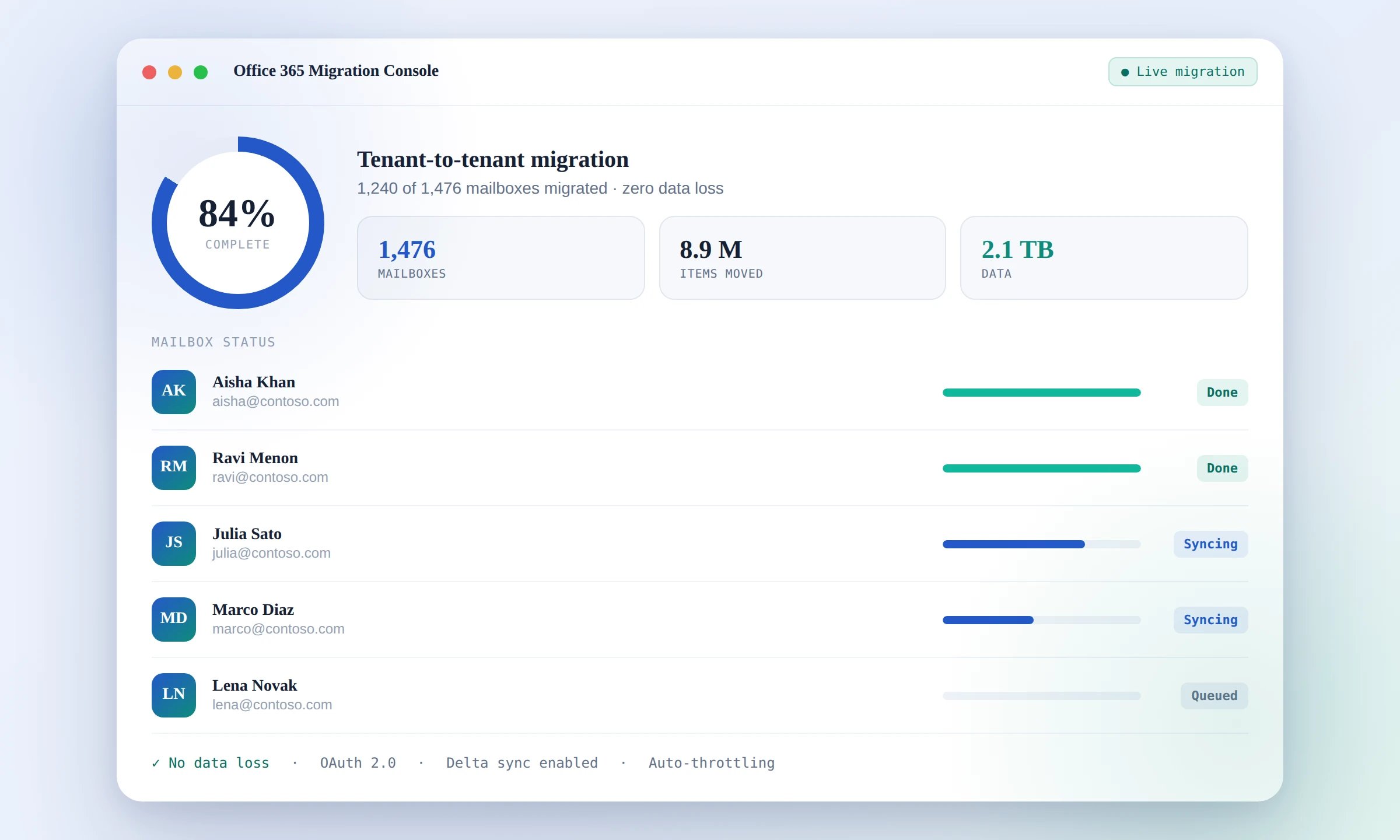
What follows is a tenant-to-tenant migration — the one most teams sweat over, because Microsoft gives you no native one-click option for it. The same stages work for on-premises Exchange and other sources too (those are just below). I've written each step around the general process rather than one specific product, so it'll line up with whatever reputable tool you go with — and you won't need PowerShell for any of it.
Install a migration tool
Grab a dedicated Office 365 (Microsoft 365) migration tool, install it on a Windows machine, and open its Office 365 migration option. The usual names here are EdbMails, BitTitan, Quest, and CodeTwo — our software comparison can help you choose.
Connect the source tenant
Sign into the source tenant with OAuth 2.0 modern authentication. The tool either sets up a Microsoft Entra ID (Azure AD) app for you or walks you through it, and then you approve admin consent.
- Admin/impersonation rights let a single account reach every mailbox
- No individual user passwords required
- MFA and security-defaults environments are supported
Select & preview mailboxes
The tool pulls up every source mailbox — user, shared, and archive — along with public folders, usually showing a count of what's inside each. Tick the ones you want. If you only need part of a mailbox, filter by date, folder, or item type.
Connect the target tenant
Sign into the destination tenant the same way. The better tools will create and license any target mailboxes that aren't there yet, so you're not setting up each one by hand.
Map source to target
Now line up each source mailbox with its target. Most tools match them automatically by address — just look it over and fix anything by hand or with a CSV, which matters for same-domain moves or users who've been renamed.
Start the migration
Kick it off. The migration carries emails, calendars, contacts, folders, and permissions over. Tools that run several mailboxes at once and handle Microsoft 365 throttling on their own are noticeably quicker and won't stall halfway. Watch the progress, and save the report when each batch finishes.
Delta & cut over
Once the first pass is done, run an incremental (delta) migration to grab only what's changed since — no duplicates. Then point your MX records / mail flow at the destination, sort out Outlook (or let Autodiscover handle it), spot-check a few mailboxes, and you're live.
Choosing a tool. The walkthrough above works with any reputable migration tool. The right one depends on your size, budget, and workloads — we compare the leading options side by side in our Best Office 365 Migration Software 2026 guide.
Other migration scenarios
Those same stages bend to fit almost any source. Here's the short version for the moves people ask about most.
On-premises Exchange Server → Office 365
- Open your tool's Exchange migration mode and connect to the live Exchange server (set impersonation rights).
- Select mailboxes, public folders, and archives.
- Connect the target Office 365 tenant with OAuth, auto-creating mailboxes if needed.
- Map mailboxes automatically, then run the migration.
- Run a delta pass at cutover and switch mail flow to Microsoft 365.
Google Workspace (G Suite) → Office 365
- Use the Google Workspace (G Suite) migration mode and connect with a Google admin / service account — no user passwords.
- Select users to migrate emails, calendars, contacts, and tasks.
- Connect the target Office 365 tenant and map users.
- Run the migration, then a delta pass, and update MX records to Microsoft 365.
GoDaddy / Rackspace hosted email → Office 365
- Connect the hosted source (Office 365 or IMAP/Exchange depending on the provider).
- Select mailboxes and folders.
- Connect and auto-provision the target Microsoft 365 tenant.
- Map, migrate, run delta, and cut over.
Bulk PST files → Office 365
- Use the PST import mode and add one or many PST files.
- Map each PST to its target Microsoft 365 mailbox (or auto-map).
- Run the import — folder hierarchy and items are preserved, no duplicates on re-runs.
SharePoint, OneDrive & Teams → another tenant
- Use the SharePoint, OneDrive, or Teams migration module.
- Connect source and target tenants with OAuth.
- Select sites, drives, teams, channels, and chats.
- Run the migration — folder structure, documents, and permissions are preserved.
Post-migration steps
The job isn't done the moment the data lands. Tie up these loose ends:
- Switch MX records & mail flow to the destination and confirm new mail is delivering.
- Reconfigure Outlook profiles (or rely on Autodiscover) and test send/receive for pilot users.
- Run a final delta to capture anything that arrived during cutover.
- Validate data — spot-check folder hierarchy, calendars, contacts, permissions, read/unread states.
- Re-deploy email signatures centrally — after a tenant move, signatures often need redeploying. See our Office 365 email signature guide.
- Decommission the source only after sign-off, keeping a backup until you're certain.
Common challenges & how to fix them
| Challenge | Why it happens | How to avoid it |
|---|---|---|
| Slow migration | Microsoft 365 rate-limits API traffic | Use a tool that auto-manages throttling and migrates in parallel |
| Duplicate items | Re-running a full migration | Use incremental/delta that only moves new items |
| Lost permissions | Native tools don't carry permissions | Choose a tool that preserves permissions & structure |
| Cutover downtime | Bulk copy attempted on cutover day | Pre-stage data, then run a quick delta at cutover |
| Mapping errors | Manual CSV mistakes | Use automatic mailbox mapping with a review step |
| Auth failures | Legacy/basic auth deprecated | Ensure the tool uses OAuth 2.0 modern authentication |
Office 365 migration best practices

- Always pilot first. Migrate a representative group and validate before scaling.
- Pre-stage, then delta. Move the bulk ahead of time; cut over with a fast incremental pass.
- Clean before you move. Remove stale mailboxes and duplicates — faster and cheaper.
- Migrate during off-hours. Schedule cutover for evenings or weekends.
- Keep source until sign-off. Don't decommission anything until the destination is validated.
- Document everything. Record mappings, timings, and issues for audit and the next migration.
Frequently asked questions
What is Office 365 migration?
How do I migrate to Office 365 step by step?
What are the types of Office 365 migration?
How long does an Office 365 migration take?
Can I migrate Office 365 without downtime or data loss?
Do I need a third-party tool or can I use Microsoft's native migration?
What is tenant-to-tenant migration?
Can I migrate SharePoint, OneDrive, and Teams as well as email?
How do I migrate from Google Workspace to Office 365?
What is delta (incremental) migration?
Do I need to keep my source mailboxes after migration?
- Microsoft Learn — Migrate mailboxes to Microsoft 365
- Microsoft Learn — Cross-tenant mailbox migration
- Microsoft Learn — Migrate other types of IMAP mailboxes to Microsoft 365
Last updated: June 13, 2026 · Reviewed against current vendor documentation and Microsoft 365 migration guidance.