
AD Syncing for Email Signatures: Microsoft Entra ID Guide
In today’s hybrid and remote-first workplaces, maintaining accurate and professional email signatures has become surprisingly challenging. Employees frequently change roles, departments, phone numbers, or office locations. Manually updating signatures across large teams is time-consuming and difficult to keep consistent at scale.
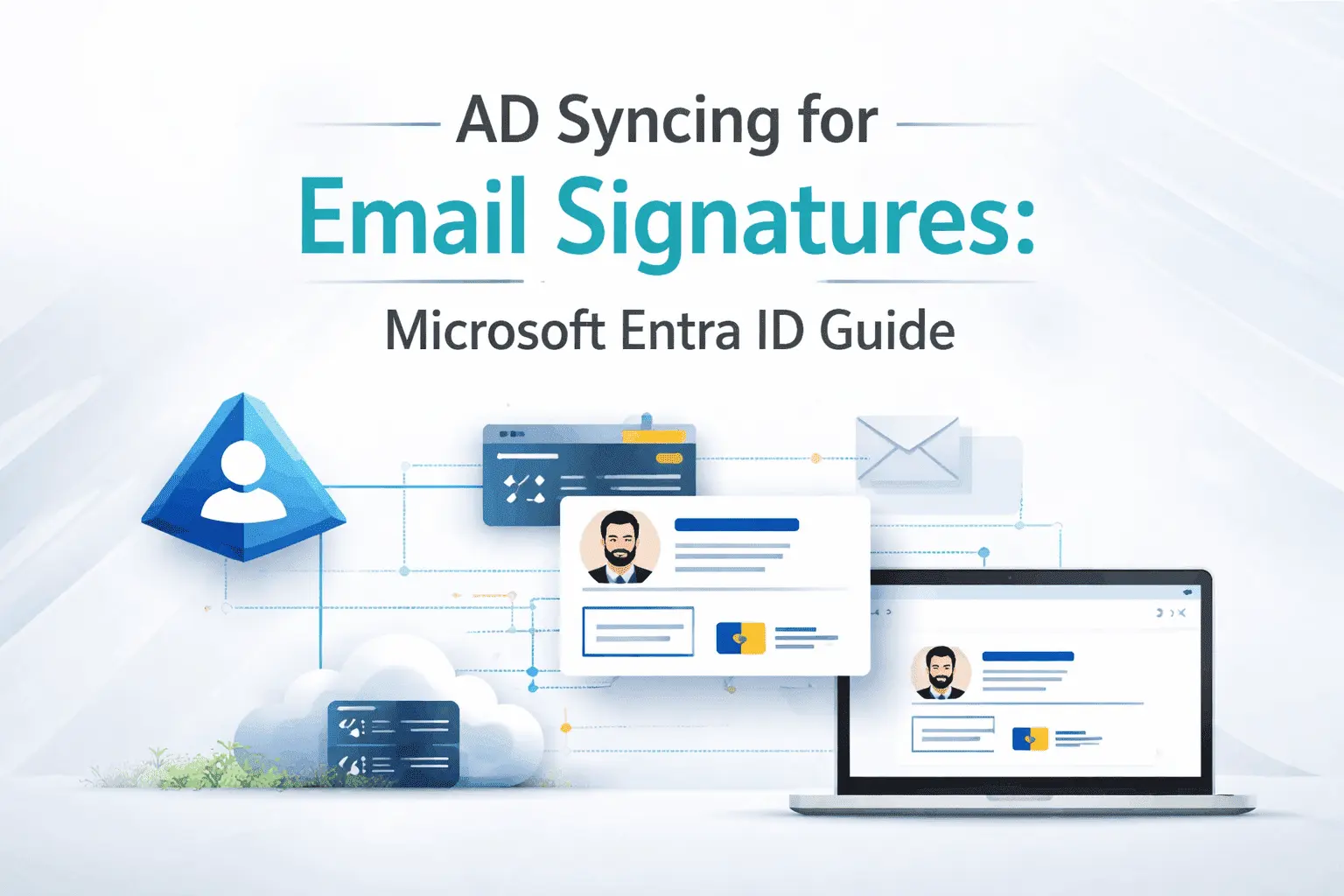
AD syncing addresses this challenge by automatically pulling user information from Microsoft Entra ID and inserting it directly into email signatures. Rather than depending on users to update their own signatures, the system connects to the directory and populates the latest information whenever a signature is generated. This creates a single, reliable source of truth and ensures every outgoing email carries accurate contact details and professional branding.
The result is significant time savings for both employees and IT teams, along with improved consistency in external communications. When an employee is promoted, moves offices, or updates their contact information, the change flows naturally into their signature without manual intervention.
Why AD Syncing Has Become Essential
Traditional approaches to signature management are no longer practical for most organizations. With distributed teams and frequent role changes, relying on manual updates leads to outdated information, inconsistent branding, and unnecessary administrative work.
By connecting directly to Microsoft Entra ID, AD syncing ensures that signatures always reflect the most current user data. This automation not only reduces errors but also helps maintain a polished and professional image when communicating with clients and partners. It is particularly valuable for organizations that want to combine dynamic user information with centralized branding and compliance requirements.
Common Attributes That Can Be Synced
Microsoft Entra ID contains a rich set of user attributes that can be used to populate email signatures. Most organizations focus on a core group of fields that provide the greatest value:
| Attribute | Microsoft Entra ID Field | Typical Use in Signature |
|---|---|---|
| Full Name | displayName | Sender’s complete name |
| Job Title | jobTitle | Professional title or designation |
| Department | department | Department or team name |
| Mobile Phone | mobilePhone | Personal or business mobile number |
| Office Phone | businessPhones | Work telephone extension |
| Office Location | officeLocation | Office address or city |
| Email Address | Primary email address | |
| Profile Photo | photo (via Microsoft Graph) | Profile picture display |
Advanced implementations can also use custom extension attributes to include business-specific information that is not available in standard fields.
How AD Syncing Works
The process begins with user data stored in Microsoft Entra ID. When a signature is generated, the system connects to Microsoft Graph to retrieve the latest attributes for that user and populates the signature template using placeholder tokens such as %%JobTitle%% or %%MobilePhone%%.
This retrieval can happen dynamically when the email is composed or through scheduled refreshes, depending on the solution architecture. Because it uses Microsoft’s secure Graph API, the data remains accurate and protected by enterprise-grade security controls.
In hybrid environments, data first flows from on-premises Active Directory to Entra ID through Microsoft Entra Connect (formerly Azure AD Connect). Once the information is available in Entra ID, the signature solution can reliably pull and apply it.
Best Practices for Successful AD Syncing
Achieving good results with AD syncing requires careful planning rather than simply enabling every available attribute. Organizations that see the best outcomes start by identifying which fields are truly useful in a signature and which ones may add unnecessary clutter.
It is important to build in fallback logic for cases where attributes are missing or empty. Conditional rules can be used to show or hide certain lines depending on whether data exists. Thorough testing across Outlook desktop, web, and mobile clients is essential, as rendering behavior can vary between platforms.
Security should also be considered from the start. The signature solution should be granted only the minimum permissions needed to read user attributes. Regular reviews of attribute mappings are recommended, especially after organizational changes such as restructurings or mergers.
Common Challenges and How to Address Them
While the concept is straightforward, real-world implementations often encounter a few predictable challenges. One of the most common is incomplete or inconsistent data in Entra ID. Many organizations discover that important fields like mobile numbers or office locations are missing for a significant number of users.
In hybrid setups, temporary delays between on-premises Active Directory and Entra ID can cause signatures to show outdated information for a short period. Planning for these delays and clearly communicating expectations with users helps reduce frustration.
Permission configuration and ongoing monitoring are also important aspects. Following the principle of least privilege when granting access to Microsoft Graph helps maintain security while still allowing the solution to function effectively.
Frequently Asked Questions
Microsoft Entra ID is the current name for what was previously known as Azure Active Directory. The functionality and capabilities for attribute syncing remain the same.
It provides near real-time or on-demand retrieval depending on the solution architecture. Some elements, such as profile photos, may have slight caching delays.
Common attributes include displayName, jobTitle, department, mobilePhone, businessPhones, officeLocation, mail, and profile photo. Custom extension attributes are also supported by most solutions.
No. Cloud-only organizations using Microsoft Entra ID can sync attributes directly. Hybrid environments typically sync from on-premises AD to Entra ID first.
Good signature templates include fallback text or conditional logic so that empty fields do not create awkward gaps or break the overall design.
When implemented with proper Microsoft Graph permissions and following the principle of least privilege, AD syncing is highly secure and aligns with enterprise security standards.
It is recommended to review mappings at least once per year or after any major organizational change such as restructuring, mergers, or rebranding.
Yes. Many organizations combine dynamic AD syncing for user attributes with centralized disclaimer rules to ensure both branding and legal compliance are maintained consistently.