
Out of Office Messages, ready to copy
Copy-and-paste out of office message examples for every situation — vacation, sick leave, holidays, parental leave, and more — plus exactly how to set up an out of office (automatic replies) in Outlook on Windows, the web, and your phone.
What is an out of office message?
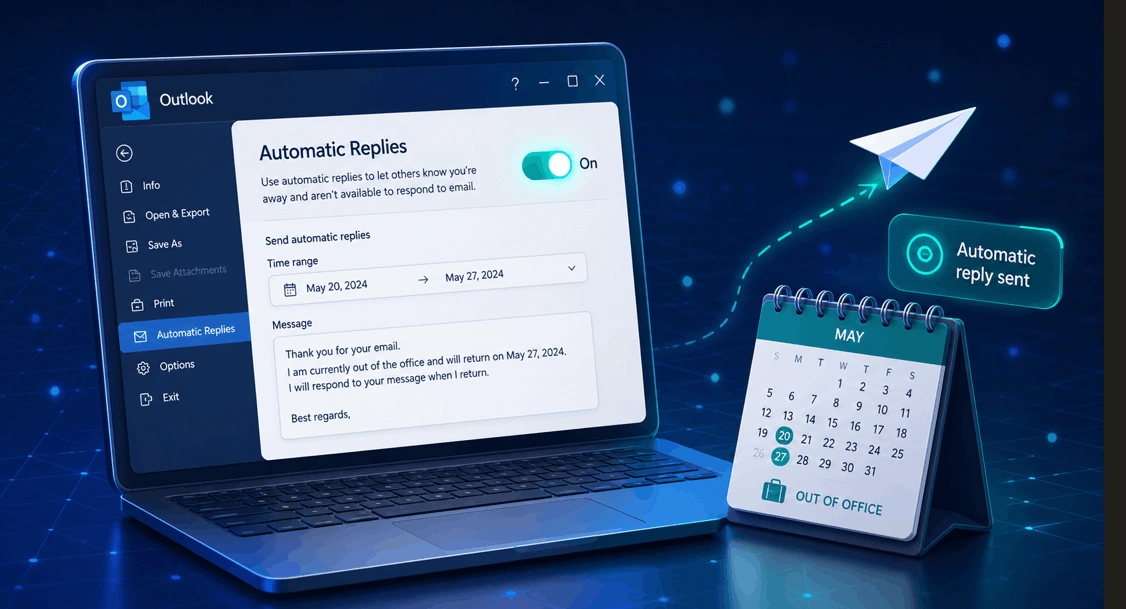
An out of office message (also called an OOO message or automatic reply) is the email that's sent back automatically when you're away, letting people know you won't reply right now, when you'll be back, and who to contact if it's urgent. In Outlook you set one up through Automatic Replies. Below you'll find ready-to-use examples for every scenario, then step-by-step setup for every version of Outlook.
What a good out of office message includes
The best out of office messages are short and answer four quick questions for whoever emailed you:
- That you're away — so they're not left wondering why you've gone quiet.
- When you'll be back — a clear return date sets expectations.
- Who to contact for anything urgent while you're out.
- What happens next — that you'll reply when you return.
Keep it to a few lines, stay professional, and skip personal details like your exact holiday location (it's a small security habit worth keeping). Now grab a template below and make it yours.
Out of office message examples
Ready-to-use templates for every situation — just swap the [brackets] for your own details and hit copy.
Professional out of office message
Short & simple out of office message
Vacation out of office message
Out of office message with an alternate contact
Sick leave out of office message
Maternity & paternity leave out of office message
Public holiday out of office message
Business travel out of office message
Internal vs external out of office message
How to set out of office in Outlook
These steps cover the new Outlook for Windows and Outlook on the web — the most common versions today. Classic Outlook, mobile, and IMAP/POP accounts are right below.
Open settings
In new Outlook, go to View → View settings (or click the gear icon). In Outlook on the web, click Settings (gear, top-right).
Go to Automatic Replies
Select Accounts → Automatic Replies. (Pick the right account first if you have more than one.)
Turn it on
Flip the Turn on automatic replies toggle.
Set the dates (recommended)
Tick Send replies only during a time period and enter a start and end time — Outlook then turns the reply off automatically when you're back.
Write your message
Type your reply in the box (this is what people inside your organization see). Paste one of the templates above.
Add an external message (optional)
Tick Send replies outside my organization and add a separate, more formal message for clients and outside contacts.
Save
Click Save. Your out of office is live — and it'll switch itself off at the end time you set.
Classic Outlook, mobile & IMAP accounts
On a different version? Here's how to set out of office everywhere else.
Classic Outlook (Windows 2016/2019/2021)
- Click File in the top-left.
- Select Automatic Replies (Out of Office).
- Choose Send automatic replies, and optionally tick "Only send during this time range" to set dates.
- On the Inside My Organization tab, type your message for colleagues.
- On the Outside My Organization tab, add a message for external contacts (optional).
- Click OK.
Outlook mobile app (iPhone & Android)
- Tap your profile picture (top-left), then the Settings gear.
- Tap the account you want to set up.
- Tap Automatic Replies and switch it on.
- Type your message, optionally set it for internal-only or everyone, and save.
POP / IMAP accounts (Gmail, etc.) — no Automatic Replies button
- Automatic Replies only works for Exchange, Microsoft 365, and Outlook.com accounts — POP/IMAP accounts (like Gmail added to Outlook) don't have the button.
- Instead, create a new email as your reply, then save it as an Outlook Template (File → Save As → Outlook Template).
- Go to Rules → Manage Rules & Alerts → New Rule → Apply rule on messages I receive → reply using a specific template.
- Outlook must stay open and running for the rule to send replies. The easier option is usually to set the out of office directly in your provider's webmail (e.g. Gmail's "Vacation responder").
Internal vs external: always write two versions — a casual one for teammates and a polished one for outside contacts. Be aware that external replies go to everyone who emails you, including newsletters, so keep that message generic.
Show out of office on your Outlook calendar
Automatic Replies handle your email — but to also block your calendar so colleagues see you're away:
- Create an all-day event for the days you're out.
- Set the Show As status to Out of Office so it shows in your free/busy and declines or flags new meeting invites.
Tips for a great out of office message
- Set a start and end date so the reply turns itself off — no awkward "I'm away" messages a week after you're back.
- Name a real backup and check they're happy to be the contact before you list them.
- Keep it short. Three or four lines is plenty — nobody reads a paragraph of auto-reply.
- Don't overshare. Skip your exact location and travel plans — it's a simple security habit.
- Proofread it. This message goes to everyone — typos in an auto-reply look careless.
- Set your signature too while you're at it — our email signature guide keeps yours consistent.
Out of office not working? Common fixes
| Problem | Why | Fix |
|---|---|---|
| No "Automatic Replies" button | POP/IMAP account (e.g. Gmail in Outlook) | Use a rule + template, or set it in your provider's webmail |
| External people get nothing | External replies are off by default | Tick "Send replies outside my organization" |
| Still replying after I'm back | No end date was set | Set a time period, or toggle it off manually |
| Reply sent only once per person | This is normal for Exchange/M365 | Working as intended — each sender gets one reply per away period |
| Rule-based reply not sending | Outlook isn't running | Keep Outlook open, or use webmail's vacation responder instead |
Out of office messages — FAQ
What is an out of office message?
What should my out of office message say?
How do I set up an out of office in Outlook?
How do I set out of office in the new Outlook?
How do I set out of office in Outlook on the web?
How do I set an out of office on the Outlook mobile app?
How do I schedule an out of office in Outlook?
Can I send different messages to internal and external contacts?
Why don't I have the Automatic Replies button in Outlook?
How do I turn off out of office in Outlook?
What does OOO or OOF mean?
How long should an out of office message be?
- Microsoft Support — Set up out of office automatic replies in Outlook
- Microsoft Support — Automatic replies in Outlook on the web
Last updated: June 13, 2026 · Reviewed against current Microsoft Outlook documentation.