
Exchange Migration, the practical guide
Exchange Server 2016 and 2019 are out of support — so it's decision time: move to Microsoft 365 or upgrade on-prem to Exchange SE. This guide walks through both, the migration methods that actually fit each size of business, the right Exchange migration tool for the job, and a clean step-by-step for an Exchange to Office 365 migration.
What is Exchange migration?
Exchange migration means moving your mailboxes, public folders, and data off an on-premises Exchange Server — either up to Microsoft 365 (Exchange Online) or across to a newer on-prem version like Exchange Server SE. Since Exchange 2016 and 2019 lost support in October 2025, most teams are doing one of the two. You can use Microsoft's native methods (cutover, minimal hybrid, full hybrid, or IMAP) or a dedicated Exchange migration tool, and this guide covers how to pick.
Why Exchange migration can't wait
This isn't a "nice to have" project anymore. The clock already ran out.
On October 14, 2025, Exchange Server 2016 and 2019 reached end of support. Your servers still run, but Microsoft no longer ships security fixes, bug fixes, or technical support for them. Every month you stay put, the risk grows — unpatched email servers are a favourite target. So the real question isn't whether to migrate, it's where to.
Security reality: an out-of-support Exchange Server won't get patched for the next vulnerability. If you can't finish a full migration quickly, at least stand up a hybrid connection so new mail flows through a supported platform while you move.
Cloud or on-prem — your two real options
Microsoft gives you exactly two supported destinations. Most businesses should go cloud; a few have good reasons to stay on-prem.
Move to Microsoft 365
Migrate mailboxes to Exchange Online and retire the hardware. It's Microsoft's recommended path — simplest long-term, no servers to patch, and you get Teams, OneDrive, and the rest alongside.
Best for most businessesUpgrade to Exchange Server SE
Stay on-premises on the new Subscription Edition — a subscription-licensed, evergreen build of Exchange. Sensible if data sovereignty, compliance, or architecture keeps you off the cloud.
On-prem & compliance needsPlenty of organizations land in the middle with a hybrid setup — keeping a foot on-prem while mailboxes live in the cloud. We'll cover that too. If you're weighing the broader cloud move, our Office 365 migration guide looks at the whole Microsoft 365 picture beyond just email.
The methods for moving Exchange to Microsoft 365
There's no single "right" way — the best method depends on how many mailboxes you have, which Exchange version you're on, and whether you need the old and new worlds to coexist.
Cutover
Moves every mailbox in one pass over a weekend. Simple, but only practical for smaller orgs.
≤150 mailboxesStaged
Batch moves built for legacy Exchange 2003/2007. Not used for 2016/2019 — mostly historical now.
Legacy sourcesMinimal (express) hybrid
A lightweight hybrid just for migrating. Quicker to set up than full hybrid, then you decommission.
Small–mid, migrate & leaveFull hybrid
Rich coexistence — shared free/busy, staged waves, and a long runway. The enterprise default.
Large / complianceIMAP
Moves email only — no contacts or calendars. A fallback when other methods don't fit.
Mail onlyThird-party tool
Skips the hybrid setup entirely. Best for cross-forest moves, messy environments, or tight timelines.
Complex / cross-forest| Method | Source | Typical size | Coexistence |
|---|---|---|---|
| Cutover | Exchange 2010–2019 | ≤150 mailboxes | None |
| Staged | Exchange 2003 / 2007 | Batches | Limited |
| Minimal hybrid | Exchange 2010+ | Small–mid | Short-term |
| Full hybrid | Exchange 2010+ | 2,000+ | Full |
| IMAP | Any IMAP | Any (mail only) | None |
| Third-party tool | Any | Any | Varies |
Another route: you can also export mailboxes to PST and import them into Microsoft 365 with network upload. If that's your plan, our OST/PST guide covers exporting cleanly.
Which method should you choose?
A quick rule of thumb that holds up in the real world:
- Under ~150 mailboxes, simple setup — cutover or minimal hybrid will get you there with the least fuss.
- Hundreds to thousands of mailboxes, or you need users on both sides for weeks — go full hybrid for clean coexistence.
- Cross-forest, multiple orgs, or a messy environment — a third-party tool usually beats wrestling with hybrid.
- Tight deadline and limited Exchange expertise — a tool removes the hybrid learning curve and the risk that comes with it.
Prerequisites for an Exchange migration
Sort these before you touch a single mailbox:
- Verify your domains in Microsoft 365 and plan the DNS changes (MX, Autodiscover, SPF/DKIM/DMARC).
- Patch your Exchange servers to a supported CU/HU — modern hybrid now requires the dedicated hybrid app, which needs recent updates.
- Set up directory sync (Microsoft Entra Connect) so on-prem identities match cloud accounts.
- Right-size licensing — assign Microsoft 365 / Exchange Online licences before mailboxes land.
- Inventory the awkward stuff — public folders, shared mailboxes, large mailboxes, and anything tied to the server.
- Lower your MX record TTL a few days out so mail-flow cutover propagates in minutes, not hours.
Exchange to Microsoft 365, step by step
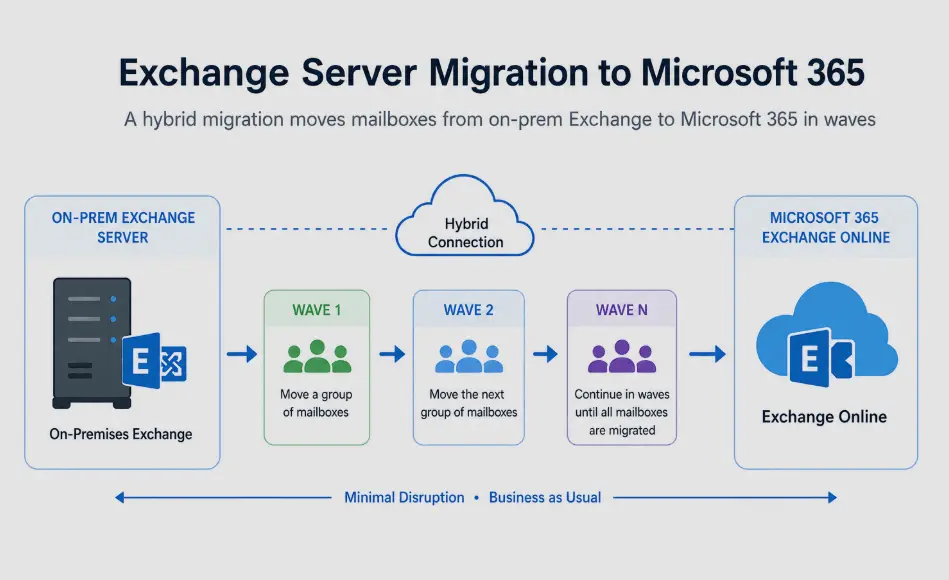
This is the shape of a typical hybrid-style move to Exchange Online. The same stages apply whether you use Microsoft's native tools or a third-party migration tool — the details differ, the flow doesn't.
Prepare & assess
Document your mailboxes, public folders, and mail flow. Verify domains in Microsoft 365, fix DNS, and patch Exchange to a supported build.
Sync identities
Stand up Microsoft Entra Connect so your on-prem users map cleanly to cloud accounts, and assign licences.
Set up hybrid (or your tool)
Run the Hybrid Configuration Wizard for coexistence — or connect your chosen migration tool to source and target with modern authentication.
Move a pilot batch
Migrate a small group first. Validate mail flow, free/busy, Outlook, and mobile before you scale up.
Migrate in waves
Move the rest in batches by department or location. Track progress and keep users informed at each wave.
Cut over mail flow
Point MX records at Microsoft 365, confirm Autodiscover, and run a final delta sync so nothing's left behind.
Decommission (carefully)
Retire on-prem servers — but if you still manage accounts with Entra Connect, keep one Exchange server (or the management tools) for recipient management.
Exchange migration tools — native vs third-party
Microsoft's own tools are free and capable, but they shine in specific situations. Knowing when to reach for a third-party tool saves a lot of pain.
Native options — the Hybrid Configuration Wizard and the Microsoft 365 admin migration tools handle most standard same-forest moves to Exchange Online at no extra cost. They're the right call when your environment is clean and you have the Exchange skills in-house.
A dedicated Exchange migration tool earns its keep when things get complicated — cross-forest or tenant-to-tenant moves, merging two companies, very tight timelines, or simply wanting to skip the hybrid setup. Good ones map mailboxes automatically, run many in parallel, handle throttling, and let you migrate without standing up hybrid at all.
Comparing tools? The well-known names include Quest, BitTitan, CodeTwo, and EdbMails — each with different strengths and pricing. We line them up side by side in our best Office 365 migration software comparison.
- Migrates without full hybrid so you skip the most error-prone setup step.
- Handles cross-forest & tenant-to-tenant moves that native tools struggle with.
- Parallel mailboxes + auto-throttling so big moves finish on schedule.
- A free trial so you can prove it works on your environment first.
Staying on-prem: upgrading to Exchange Server SE
If the cloud isn't an option, Exchange Server Subscription Edition is the only supported on-prem destination. The path depends on where you're starting:
- On Exchange 2019 (CU14/CU15): you can do an in-place upgrade to SE — it's essentially a re-licensed continuation of 2019, so the jump is small.
- On Exchange 2016: you'll first move to Exchange 2019, then in-place upgrade to SE — a two-step journey, so plan for it.
- Licensing changes: SE runs on a subscription model and needs active Software Assurance or equivalent. Budget for that, plus staying current on cumulative updates.
Many teams do both: migrate most mailboxes to Microsoft 365 and keep a single Exchange SE server on-prem for recipient management when they're syncing identities with Entra Connect.
Common Exchange migration challenges & fixes
| Challenge | Why it bites | Fix |
|---|---|---|
| The "last Exchange server" | Removing all servers breaks recipient management when you sync with Entra Connect | Keep one Exchange SE server, or use the management tools, for recipients |
| Public folders | They migrate differently from mailboxes | Plan a separate public-folder migration; test access carefully |
| Hybrid complexity | HCW, certificates, and the dedicated hybrid app trip people up | Patch to a supported build first; or use a tool to skip hybrid |
| Throttling on big moves | Microsoft 365 limits how fast data lands | Migrate in waves; tools that auto-manage throttling help |
| Large mailboxes | Slow batches, stalled syncs | Pre-stage early, finish with a delta pass at cutover |
| Mail-flow downtime | High MX TTL drags out the switch | Lower TTL days ahead; cut over outside business hours |
Exchange migration — frequently asked questions
What is Exchange migration?
Is Exchange Server 2016 / 2019 still supported?
What are the Exchange to Office 365 migration methods?
Which Exchange migration method is best?
Do I need a third-party Exchange migration tool?
How long does an Exchange to Microsoft 365 migration take?
Can I migrate Exchange to Office 365 without downtime?
What is Exchange Server Subscription Edition (SE)?
Do I have to remove my Exchange server after migrating?
Can I migrate Exchange public folders to Microsoft 365?
What's the difference between minimal hybrid and full hybrid?
Can I export Exchange mailboxes to PST instead?
- Microsoft Learn — Exchange Server 2019 and 2016 end of support roadmap
- Microsoft Learn — Ways to migrate mailboxes to Microsoft 365
Last updated: June 13, 2026 · Reviewed against current Microsoft Exchange documentation.