
Convert OST to PST, the simple way
The free ways to export an Outlook OST file to PST, when those methods quietly fail, and how an OST to PST converter rescues an orphaned or corrupted file. Plain steps, no jargon, and what to do after the conversion.
What does "convert OST to PST" mean?
An OST file is Outlook's offline copy of a mailbox that lives on your PC and is tied to one account — you can't just open it in another Outlook. A PST file is portable: you can back it up, move it, or import it anywhere. Converting OST to PST turns that locked-down offline cache into a file you actually own. If Outlook can still open the account, you can export it for free in a few clicks. If the account is gone or the file is damaged, that's where an OST to PST converter comes in.
OST vs PST — what's the actual difference?
They look similar and they hold the same kinds of data, but they behave very differently. The short version: OST is a leash, PST is freedom.
An OST (Offline Storage Table) is created automatically when Outlook caches a mailbox — Exchange, Microsoft 365, or IMAP — so you can keep working when you're offline. The catch is it's bound to that one profile. Delete the account, lose the server, or move to a new PC and that OST becomes a brick you can't open. A PST (Personal Storage Table) is the portable cousin: a standalone file you can copy to a USB stick, back up, or import into any Outlook on any machine.
| OST (.ost) | PST (.pst) | |
|---|---|---|
| Full name | Offline Storage Table | Personal Storage Table |
| Purpose | Cached offline copy of a server mailbox | Portable local storage & backup |
| Tied to | One Outlook profile / account | Any Outlook (importable) |
| Portable? | No | Yes |
| Open in another profile? | No — must convert first | Yes |
| Best for | Working offline in cached mode | Backup, migration, archiving |
Why people convert OST to PST
Almost everyone who needs this is trying to rescue data that's suddenly out of reach. The usual triggers:
- The account was deleted or disabled — but you still need the old emails sitting in the orphaned OST.
- The Exchange server is gone — decommissioned, migrated, or just down for good.
- You're moving to a new computer or a fresh Outlook profile and want your mail to come with you.
- The OST is corrupted and you need to recover whatever's inside it.
- You want a real backup of important emails, kept locally and off the server.
- You're migrating — a PST is the easiest thing to import into Microsoft 365 later.
- Legal hold or eDiscovery — someone needs an exported, portable copy of a mailbox.
Before you start
Two minutes of prep saves a lot of frustration. Check these first:
- Use classic Outlook. The new Outlook has limited PST export (no contacts or calendar to PST right now). If you're in it, flip the "New Outlook" toggle off to get the full export tools back.
- Know whether your OST is "live" or orphaned. If Outlook still opens the account, the free method works. If the account's gone or the file is damaged, you'll need a converter (covered below).
- Find your OST file. It usually lives at
%LOCALAPPDATA%\Microsoft\Outlook\, or go to File → Account Settings → Data Files → Open File Location. If the profile is gone, search Windows for*.ostand copy it somewhere safe first. - Have free disk space for the new PST, and close other heavy apps so a big export doesn't stall.
Convert OST to PST for free in Outlook
This is the built-in, no-cost way using Outlook's Import/Export wizard. It works when Outlook can still open the account and the OST is healthy — which covers most everyday cases like backing up or moving to a new PC.
Open Outlook with the right profile
Launch classic Outlook signed into the account the OST belongs to. The mailbox needs to load for the export to see your data.
Open the Import/Export wizard
Go to File → Open & Export → Import/Export. In older versions it's File → Import/Export.
Choose "Export to a file" → PST
Pick Export to a file, click Next, then choose Outlook Data File (.pst) and Next again.
Select the mailbox root
Click the very top of the account (the mailbox name) and tick Include subfolders so nothing gets left behind.
Pick a save location & options
Browse to where the PST should go, choose how to handle duplicates, and optionally set a password.
Click Finish
Outlook writes your data into a new PST. Big mailboxes take a while — let it run.
One heads-up. A PST export skips a few things — folder views, rules, and your blocked-senders list don't come across. Your emails, contacts, calendar, and attachments do.
Where the wizard sits in each Outlook version
The steps are identical — the menu just lives in a slightly different place depending on your version:
| Outlook version | How to reach Import/Export |
|---|---|
| Microsoft 365, 2021, 2019, 2016 | File → Open & Export → Import/Export |
| Outlook 2013 | File → Open & Export → Import/Export |
| Outlook 2010 | File → Open → Import (opens the Import/Export wizard) |
| Outlook 2007 | File → Import and Export |
Other free ways to get data out of an OST
If the Import/Export wizard isn't a fit, these also work — as long as Outlook can still open the account.
Archive / AutoArchive into a PST
- Go to File → Tools → Clean Up Old Items (or File → Options → Advanced → AutoArchive Settings).
- Pick the folders and a date range to archive.
- Choose where to save the archive PST and click OK.
- Good for moving older mail out; less ideal if you want everything in one go.
Drag and drop into a new PST
- Create a PST: File → New Items → More Items → Outlook Data File, name it, click OK.
- It appears in your folder list. Drag emails and folders from the OST mailbox into it.
- Fine for a handful of items — slow and manual for a whole mailbox, and no bulk move.
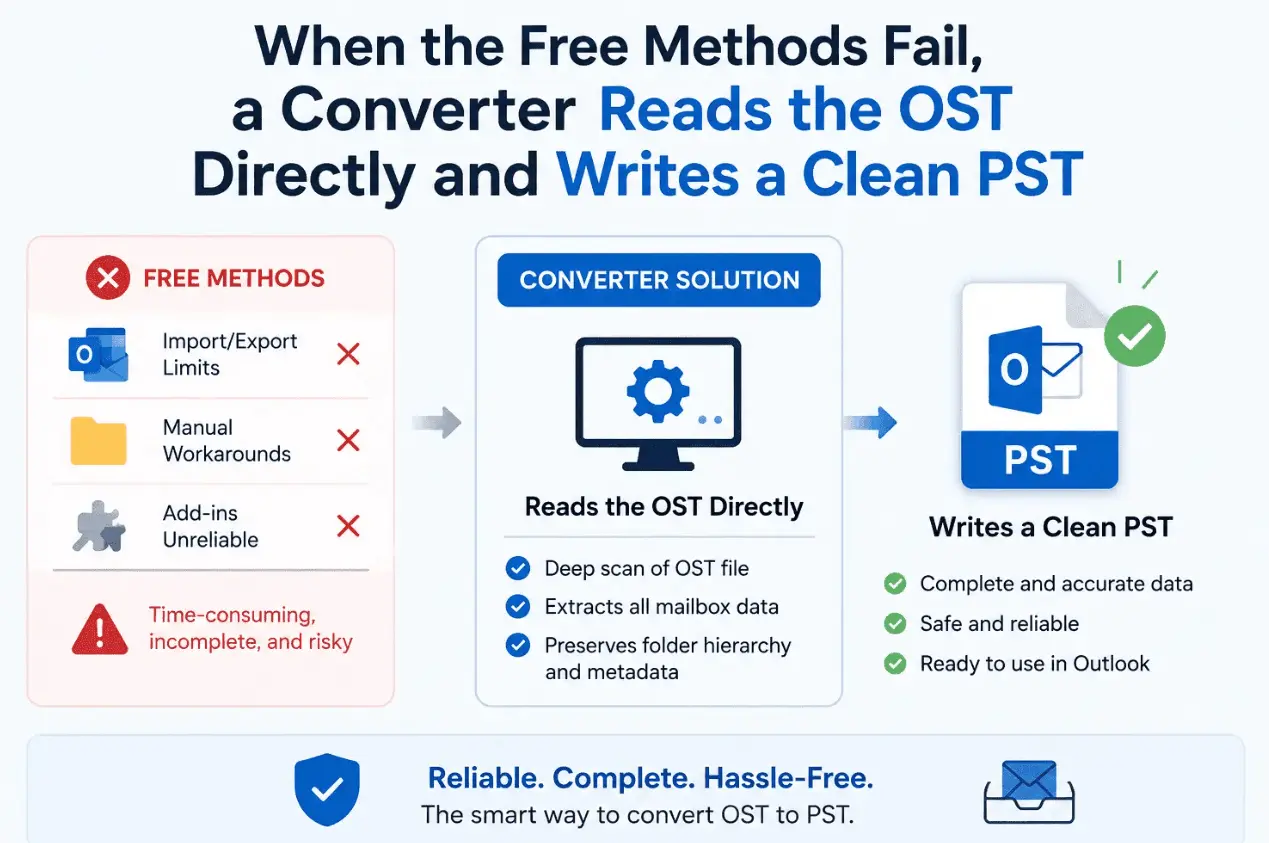
When the free methods just won't work. Every method above needs Outlook to open the account. So they all fail if the OST is orphaned (the account was deleted), if Outlook isn't installed, or if the file is corrupted. In those cases there's no manual trick — you need a dedicated converter that can open the OST on its own.
Is your OST actually corrupt? Common signs: Outlook won't sync or keeps nagging you to restart, you hit errors like "cannot open default email folders" or "the file has reached its maximum size," emails go missing, or the file simply won't open. If that sounds familiar, skip the manual export — go straight to a converter that can repair and read a damaged OST.
Use an OST to PST converter
A converter reads the OST file directly — no profile, no server, no working Outlook required — and writes a clean PST. It's the standard fix for a deleted account, a dead server, or a damaged file the wizard refuses to touch.
| Manual export | OST to PST converter | |
|---|---|---|
| Cost | Free | Free trial, then paid (some free & limited) |
| Needs Outlook + the account | Yes | No |
| Orphaned OST | No | Yes |
| Corrupt OST | No | Yes |
| Large / bulk files | Slow | Built for it |
| Best for | Healthy file, quick backup | Orphaned, corrupt or large OST |
- Download and install an OST to PST converter on a Windows PC.
- Load the OST — browse to the file, or let the tool scan and find orphaned OST files for you.
- Preview the folders and items so you know exactly what you're recovering.
- Choose PST as the output format and a save location (most tools can also filter by date or folder).
- Run the conversion and wait for it to finish.
- Import the PST into Outlook — or straight into Microsoft 365.
Which tool? There are free options (like OST2, which caps each folder at a few items) and paid ones built for large or corrupt files — EdbMails, Stellar, and SysTools among them. Most offer a free trial, so you can preview your data before paying. The checklist below covers what actually matters.
How to choose an OST to PST converter
They all claim to "convert OST to PST." Here's what separates a good one from a frustrating one:
- Opens orphaned & corrupt OST without needing Outlook or the original account — that's the whole point.
- Keeps everything intact — folder structure, read/unread status, attachments, and metadata like dates and senders.
- Preview before you convert so you can confirm the data is there and even pick specific folders.
- Handles big files and can split oversized PSTs so they stay healthy.
- Filters by date or folder if you only need part of the mailbox.
- A real free trial so you can validate it on your own file before paying anything.
Free vs paid, honestly: free tools are fine for a quick peek or a tiny mailbox. For an orphaned or corrupted OST, or anything large, a paid converter with a trial is usually worth it — you preview first and only pay once you've seen your data is recoverable.
Common OST to PST errors & how to fix them
| What you see | Why it happens | Fix |
|---|---|---|
| "Cannot open default email folders" | Profile or OST is corrupted | Recreate the Outlook profile, or use a converter to open the OST directly |
| Orphaned OST won't open | The account was deleted | Use a converter — no manual method can open it |
| Export is painfully slow | Very large OST | Export by date range/folder, or use a tool with batch & split |
| File is damaged / corrupt | Sync errors or disk issues | Use a converter that repairs and reads corrupt OST |
| No export option | You're in the new Outlook | Switch to classic Outlook, or use a converter |
| Forgot the PST password | Set during export | Recover the password; some tools can remove PST passwords |
After the conversion
You've got a PST — now put it to work:
- Import it into Outlook on the new machine: File → Open & Export → Import/Export → Import from another program or file → Outlook Data File (.pst).
- Or move it to Microsoft 365. If you're consolidating into the cloud, see our Office 365 migration guide — bulk PST import is one of the scenarios it covers.
- Keep a backup copy of the PST somewhere safe — that was probably the whole point.
- For bigger jobs — many mailboxes or whole tenants — a dedicated tool beats one-off exports. Our migration software comparison covers those.
OST to PST — frequently asked questions
What's the difference between OST and PST?
Can I open an OST file directly in another Outlook?
How do I convert OST to PST for free?
Can I convert an orphaned OST to PST?
How do I convert OST to PST without Outlook installed?
Does converting OST to PST lose any data?
Can I convert a corrupted OST to PST?
Where is my OST file located?
Can I convert OST to PST in the new Outlook?
What's the best OST to PST converter?
How do I import the PST into Microsoft 365?
Is OST to PST conversion safe?
Can I convert OST to PST in Office 365?
How do I open an OST file without Outlook?
How long does OST to PST conversion take?
How do I reduce my OST file size?
- Microsoft Support — Export or back up to an Outlook .pst file
- Microsoft Support — Introduction to Outlook Data Files (.pst and .ost)
Last updated: June 13, 2026 · Reviewed against current Microsoft Outlook documentation.