
Mobile Setup for Email Signatures
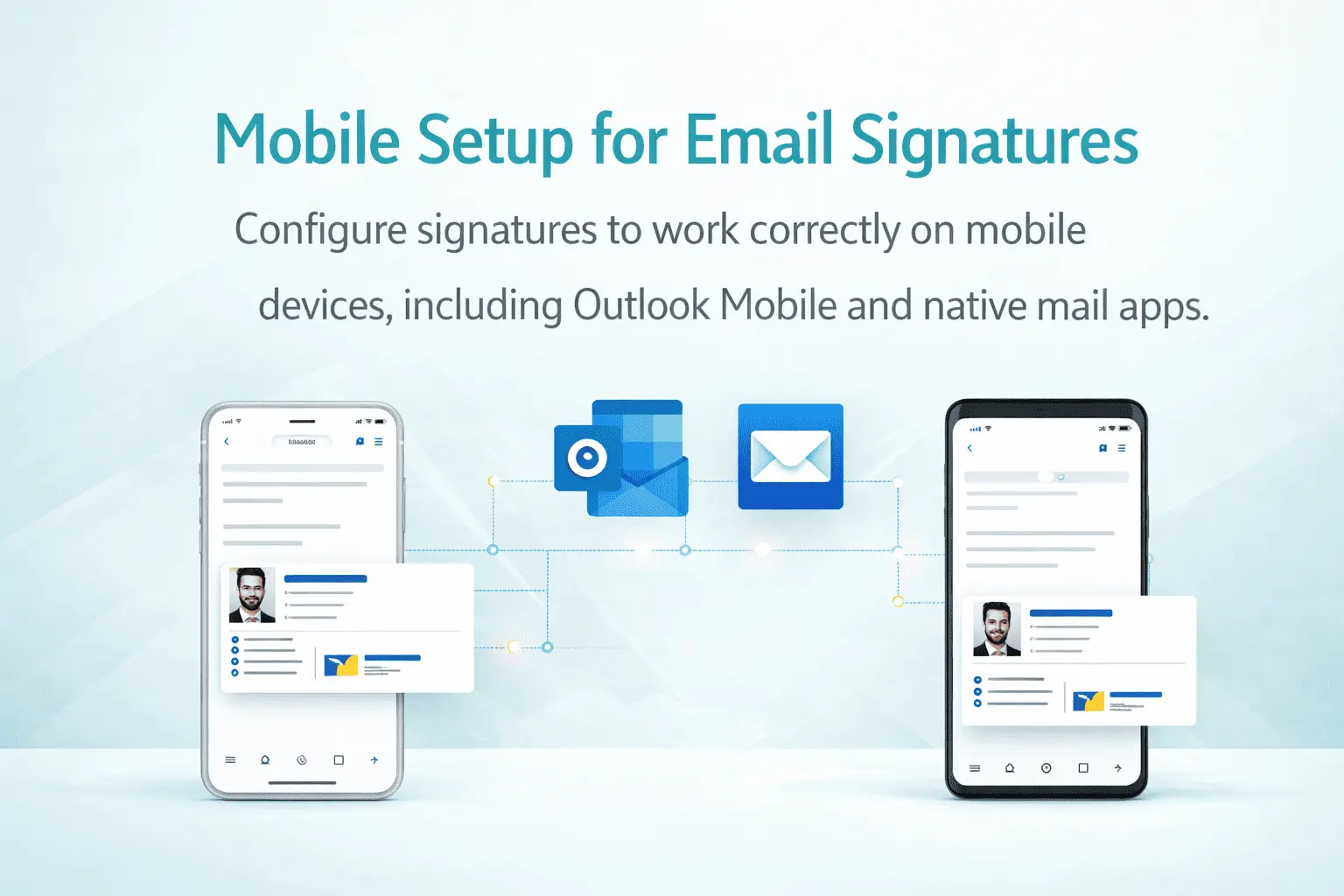
Configure signatures to work correctly on mobile devices, including Outlook Mobile and native mail apps.
In today’s mobile-first world, a significant majority of business emails are opened and replied to from smartphones and tablets. While many organizations spend considerable time perfecting desktop signatures in Outlook, they often neglect how those same signatures appear on mobile devices. The consequences can be disappointing — broken layouts, tiny unreadable text, stretched or missing images, and an overall unprofessional appearance that can harm brand perception.
Mobile signature setup is fundamentally different from desktop configuration because every mail app renders HTML signatures in its own way. Outlook Mobile, the native iOS Mail app, Gmail app, Samsung Mail, and other Android clients all have unique rendering engines and limitations. A beautifully designed signature on a large monitor can look cramped, broken, or completely unreadable when viewed on a phone screen.
Proper mobile optimization ensures that your brand remains consistent, contact information stays easily accessible with one tap, and recipients receive a polished, professional impression no matter which device they use. With hybrid and remote work continuing to grow, and professionals relying heavily on their phones for quick client communication, mobile-friendly signatures have become an essential requirement rather than a nice-to-have.
Why Mobile Signature Optimization Is Critical
Recent data shows that more than 55% of all business emails are now opened on mobile devices. When a client or partner opens your email on their phone and sees a poorly formatted signature, it can create an immediate negative impression that is difficult to recover from. On the other hand, a clean, well-designed mobile signature reinforces professionalism and makes it easy for recipients to contact you with a single tap on a phone number or email address.
Beyond branding, mobile optimization directly affects functionality. Phone numbers should be tappable, email addresses should open the mail app instantly, and website links should work smoothly on touchscreens. In many cases, signatures that look perfect on desktop become unusable on mobile due to tiny text sizes, overlapping elements, or images that fail to load properly on cellular data.
Organizations that use dynamic signatures synced from Microsoft Entra ID face additional complexity. These signatures must be carefully designed so that dynamically populated fields such as job title, phone number, and location render correctly across all mobile clients without breaking the layout or causing readability problems.
Outlook Mobile Signature Configuration
Outlook Mobile is one of the most popular business email applications and generally offers better HTML signature support than most native mail apps. However, it still has limitations compared to the full desktop version of Outlook, especially regarding complex layouts and image handling.
When setting up signatures for Outlook Mobile, simplicity and responsiveness should be the priority. Avoid overly complex nested tables and heavy custom CSS. Use inline styles wherever possible and keep the overall signature width reasonable so it adapts gracefully to different screen sizes. Profile photos should be optimized specifically for mobile — small file size (ideally under 80KB) and properly scaled to prevent slow loading on mobile networks.
One of the biggest advantages of Outlook Mobile is its strong support for server-side signatures when used with Microsoft 365. This method usually delivers much better consistency across devices compared to client-side signatures that are stored locally on the phone.
Native Mail Apps: iOS Mail and Android
The native iOS Mail app and various Android mail clients are known for being quite strict when rendering HTML signatures. iOS Mail, in particular, strips away many CSS properties and handles images and tables differently from Outlook, often resulting in unexpected layouts.
For the best results on native mail apps, signatures should be kept extremely simple. Use basic HTML elements, inline CSS only, and avoid advanced styling techniques. Many organizations create a dedicated, simplified mobile signature template specifically for native mail clients. This version typically features larger fonts, more white space, and fewer decorative elements to ensure excellent readability on small screens.
Real-device testing is essential. What looks acceptable in Outlook Mobile can appear completely different — and often much worse — in the default iOS Mail app or Gmail app. Always verify signatures on actual iPhones and Android phones rather than relying solely on emulators or desktop previews.
Best Practices for Creating Mobile-Friendly Email Signatures
Creating signatures that perform well on mobile devices requires a mobile-first design philosophy. Start by designing for the smallest screen size and then enhance the experience for larger displays. The following best practices have proven effective across many organizations:
- Design signatures with a maximum width of 600px to ensure they fit comfortably on mobile screens without horizontal scrolling
- Use larger font sizes (minimum 14–16px) and generous line spacing to improve readability on small screens
- Make phone numbers and email addresses fully clickable using proper tel: and mailto: protocols
- Optimize all images for fast loading — compress profile photos heavily and keep file sizes small
- Avoid background images, complex gradients, and heavy styling that may not render correctly on mobile clients
- Test signatures thoroughly on both iOS and Android devices using multiple mail apps
- Consider maintaining a simplified mobile version of your signature for native mail clients
- Ensure the signature remains readable and attractive even when dark mode is enabled on the device
Common Mobile Signature Problems and Solutions
Organizations frequently encounter these mobile-specific signature challenges:
- Signature appears too wide and forces horizontal scrolling on phones
- Text becomes too small to read comfortably on mobile screens
- Images are missing, stretched, or load very slowly on cellular networks
- Links are not tappable or fail to open correctly
- Signature renders differently between Outlook Mobile and native mail apps
- Dynamic fields pulled from Microsoft Entra ID break the layout on mobile devices
The most reliable solution is thorough testing on real physical devices combined with mobile-optimized signature templates. Many successful teams maintain two versions — a rich desktop signature and a simplified, highly compatible mobile version — to guarantee the best possible experience across all devices and platforms.
Testing and Validation Best Practices
Never assume a signature will look good on mobile based only on desktop testing. A comprehensive testing process should include the following steps:
- Test on both iPhone and multiple Android devices
- Check appearance in Outlook Mobile, native iOS Mail, Gmail app, and other popular clients
- Verify rendering in both light mode and dark mode
- Test with different screen sizes and orientations (portrait and landscape)
- Confirm that all links are clickable and function correctly on touchscreens
- Validate image loading speed on both Wi-Fi and cellular networks
Regular mobile signature testing should be part of your ongoing email management process, especially after any template updates or Microsoft 365 changes.
Frequently Asked Questions
Usually not. Signatures designed primarily for desktop Outlook often break or look unprofessional on mobile devices due to different rendering engines. It is strongly recommended to create and test mobile-optimized versions separately.
Outlook Mobile generally provides the best HTML signature support among mobile apps. Native iOS Mail and the Gmail app tend to have more limitations with complex layouts and styling.
Many organizations maintain two versions: a rich desktop signature and a simplified mobile-optimized signature. This approach delivers the best possible user experience across all devices and platforms.
Use the tel: protocol in HTML links, for example: <a href="tel:+1234567890">+1 (234) 567-890</a>. This makes the number tappable on mobile devices.
Yes, but they require mobile-optimized templates. Server-side signature solutions generally provide better consistency across mobile and desktop clients compared to client-side signatures.
Testing should be performed after any template change, Microsoft 365 update, or major organizational change. Many teams conduct quarterly mobile signature audits to maintain quality and consistency.